 Charonyu
 Swipee · Photo cleanup
 So many photos.Cleaning up can be easy.
Swipe left to mark for deletion, right to keep, and bring your library back to order little by little.
On Android?Join the Android waitlist and get notified when testing opens- Undo anytime
- iPad supported
- No sign-up
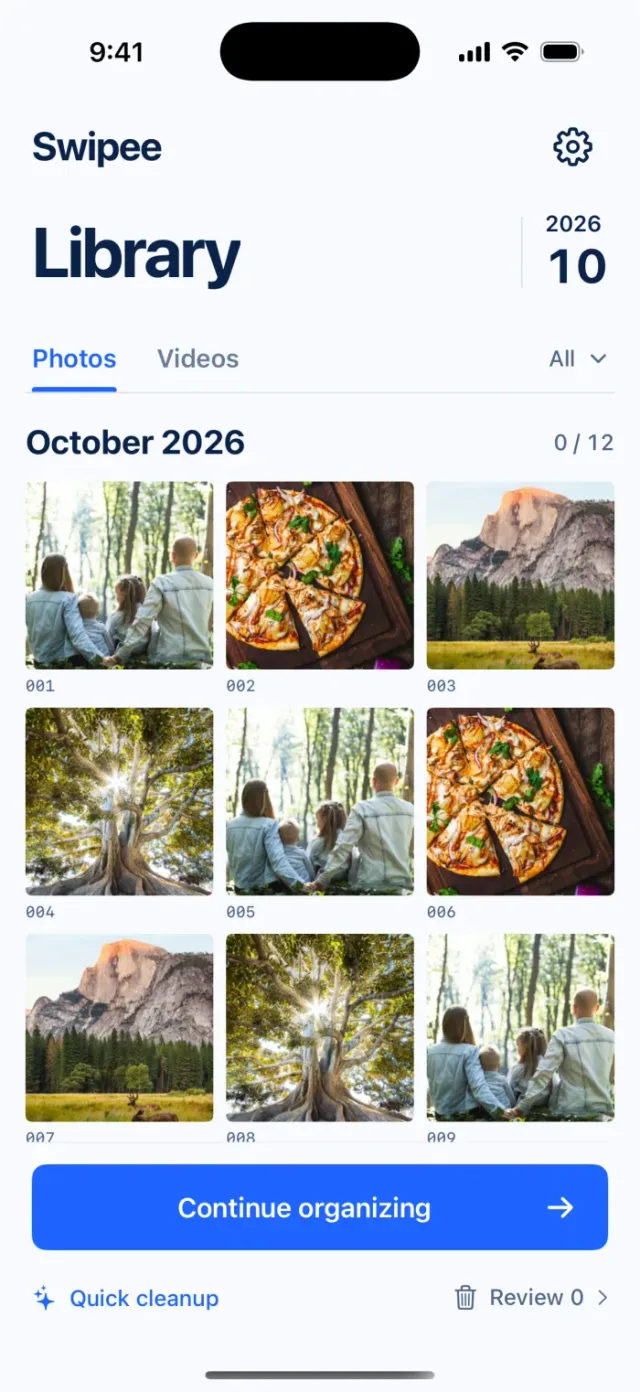
Swipe,
tidy your life.
- 1
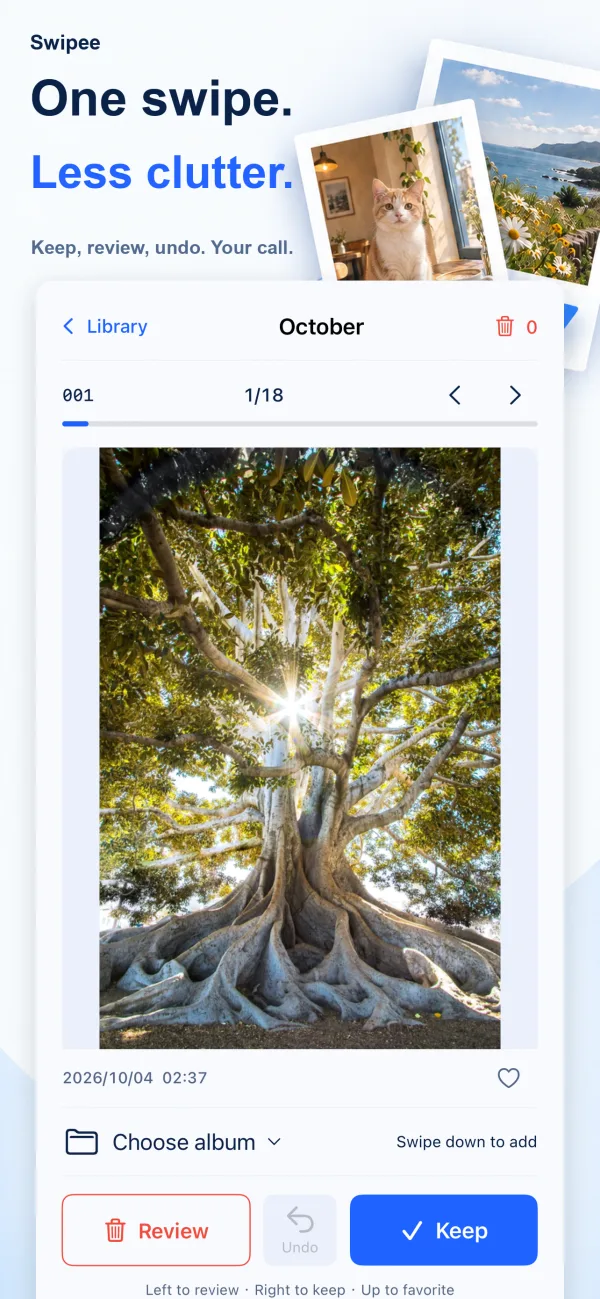
Swipe left to delete
Mark photos you don't need for deletion. Change your mind and you can undo.
- 2
Swipe right to keep
Swipe right on the memories you want to keep.
- 3
Swipe up or down
Swipe up to add to Favorites, or down to add to an album you choose.
Break cleanup into small decisions.
You don't have to finish in one go. Work through it month by month. Take a good look, then decide. You have the final say on what gets deleted.
Photo comparison
Review photos taken close together side by side, then keep or mark each one.
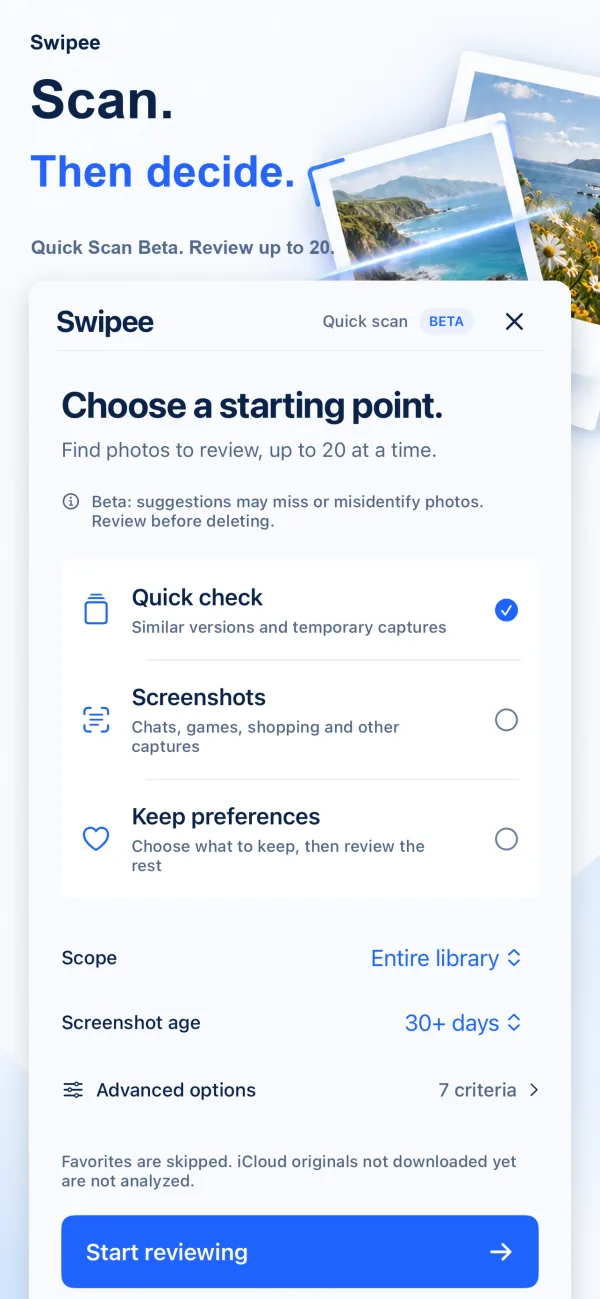
Quick Scan (Beta)
Checks for old screenshots, similar images and other photos you may not need. Up to 20 suggestions at a time, none selected by default.
Content suggestions
Pick a date range to try topic or people groupings, then add the photos you select to an album.
See it in action
All features
Free
Four-way swiping
Swipe left to mark for deletion, right to keep, up to add to Favorites and down to add to an album you choose. All can be undone.
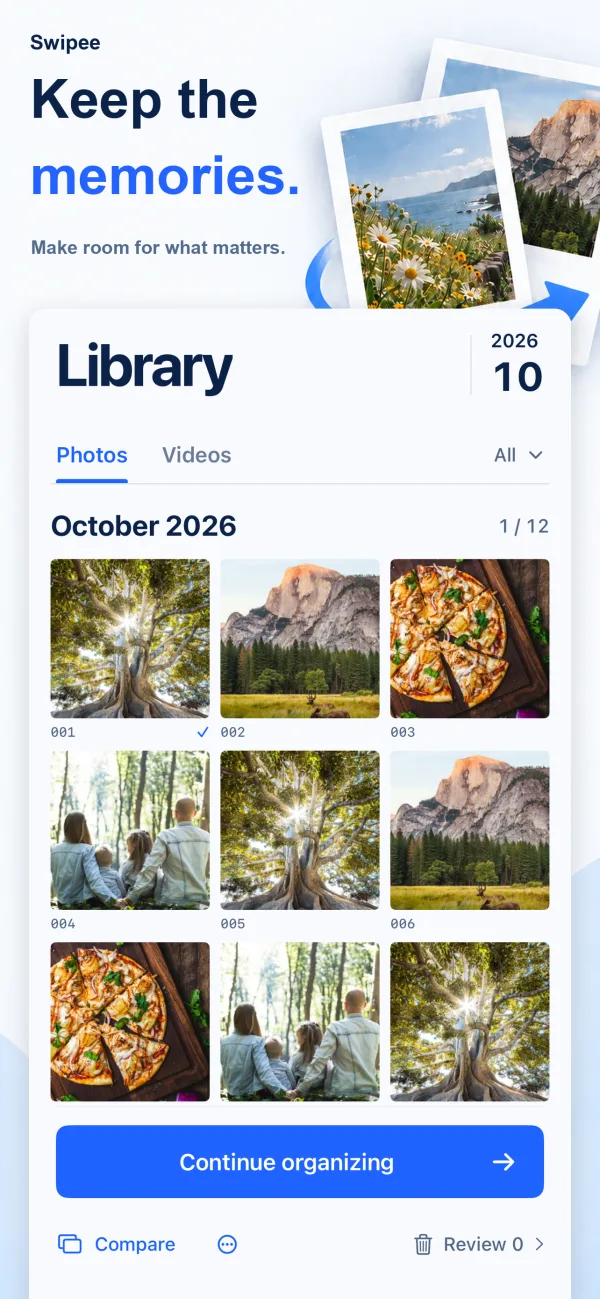
Clean up by month
Browse photos and videos by month and pick up where you left off.
Photo comparison
Review photos taken close together side by side. Photos are grouped when neighboring shots were taken within 3 seconds of each other, so they aren't guaranteed to be similar or duplicates.
Quick Scan (Beta)
Analyzes old screenshots, similar images and more on your device. It can miss or misjudge photos, and Favorites and photos you've kept are never included.
Album management
Multi-select items, manage Favorites, create albums, and change sorting and display.
Review first, then delete
Check your delete list, then restore photos one by one or keep them all. Actual deletion still needs confirmation from Apple's Photos system prompt.
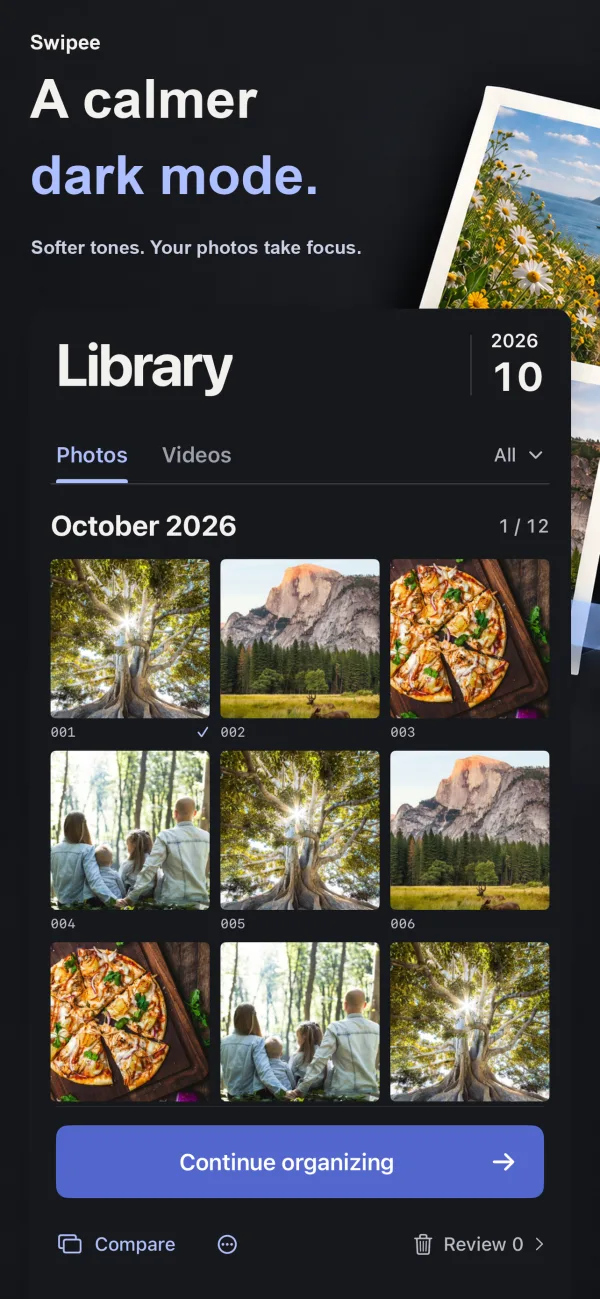
Light, dark and iPad
Follows the system language (Traditional Chinese and English), supports light and dark mode, and works on iPad in portrait and landscape.

Too many photos on your iPhone? How to clean them up and delete them quickly
Delete screenshots, big videos and duplicates first, use Select and drag your finger to pick a whole stretch at once, and check Recently Deleted afterwards. Built-in methods, where things moved in the newer Photos app, and the swipe cleanup flow in Swipee.
Read the guideAny other questions?
What if I delete the wrong photo?
You can undo in Swipee, or restore photos one by one from the delete list. After a photo is actually deleted, it goes to the system's Recently Deleted album, and you can recover it within 30 days as long as it hasn't been permanently deleted there.
Can I clean up by month?
Yes. Swipee browses photos by month, so you can clean up one month at a time and pick it up again later.
Are my photos uploaded?
Photo analysis happens on your device, and your photo library isn't uploaded to any third-party AI service. When you browse iCloud Photos, Apple's Photos app may download files from iCloud.
Where is the tutorial?
In the upcoming version, Settings > Tutorial lets you rewatch the four-way swipe animation, photo comparison, content and people suggestions, Quick Scan and delete confirmation. The App Store update is waiting to be submitted for review.
Can the language follow the system?
The upcoming version adds Follow System, English or Traditional Chinese at the top of Settings. The App Store update is waiting to be submitted for review. If your system language isn't supported, English is used.
Does it work on iPad?
Yes. Swipee supports iPad in portrait and landscape.