 Charonyu
How to find and delete duplicate photos on iPhone
iOS 16 and later has a built-in Duplicates album in Photos. On iOS 26, go to Collections > More > Duplicates and tap Merge to keep the best-quality copy. Burst shots and similar photos you pick yourself, for example with Swipee's photo compare.
 Charonyu・Guide・

Quick answer
Your iPhone can find duplicate photos on its own: on iOS 26 or later, open Photos > Collections > More > Duplicates and tap “Merge” on each set. The system keeps the highest-quality version and combines the data, and moves the rest to Recently Deleted. But it only catches “nearly identical” photos. Burst shots and several takes of the same scene are up to you. You can use Swipee’s photo compare to put photos taken close together in time side by side and pick the best one yourself.
Method 1: Merge with the built-in Duplicates album
The location depends on your iOS version:
| iOS version | Where to find Duplicates |
|---|---|
| iOS 26 or later | Photos > Collections > More > Duplicates |
| iOS 18 | Photos home screen, scroll down > More > Duplicates |
| iOS 16, 17 | Photos > Albums > Utilities > Duplicates |
Steps:
- Open Duplicates. Each set of duplicate photos is grouped together.
- After confirming they’re the same photo, tap “Merge” on that set, then tap “Merge [number] Items”.
What does merging keep? According to Apple, merging combines the highest-quality version with all the relevant data from that set and keeps it in your library, and the rest move to Recently Deleted. So you don’t have to worry about being left with the lower-quality copy.
Can’t find Duplicates? According to Apple, if no duplicate photos or videos are detected in your library, this item doesn’t appear. If you just imported a lot of photos, the system may still be organizing them in the background, so check again later. Also make sure you’re on iOS 16 or later and look in the right place from the table above.
What’s the difference between duplicate photos and similar photos?
| Duplicate photos | Similar photos | |
|---|---|---|
| Examples | The same photo saved twice, or the same photo in different resolutions or formats | A burst, five shots of the same scene, group photos with slightly different expressions |
| Does built-in Duplicates catch them? | Yes | Usually not |
| What to do | Merge them directly | Compare them and pick the best one |
Apple describes duplicates as exact copies (the metadata may differ), plus photos that look the same but differ slightly in resolution or file format. In other words, photos that are visibly different usually aren’t counted as duplicates.
In practice, similar photos are often what take up the most space: eight shots of one dish, or ten group shots just to get one where nobody blinked.
Method 2: Pick from a burst with the built-in Select
If you shot in Burst mode: open the burst, tap “Select…”, tick the corner of each photo you want to keep, and tap “Done” to save the chosen ones as individual photos and delete the rest. To find all your bursts, go to Collections > Media Types > Bursts.
But multiple photos you took by tapping the shutter repeatedly don’t count as a “burst”, so this trick doesn’t apply to them.
Pick the best of your similar photos with Swipee
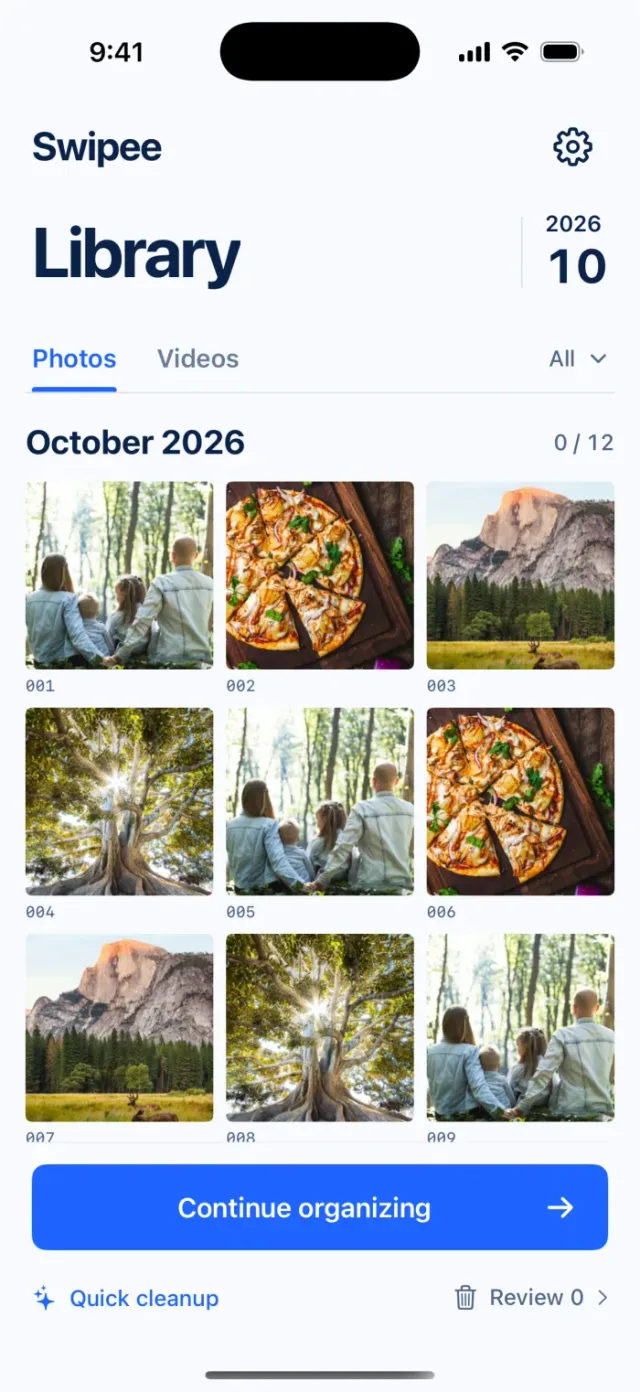
For true duplicates, the built-in Duplicates album is the most reliable option. Swipee helps with the other part: it puts photos taken close together in time next to each other so you can compare them and decide:
- Photo compare: Check photos taken close together in time side by side, look through them one by one, then choose to keep or mark for deletion. Groups are based on capture time, so they are not guaranteed to be duplicates.
- Quick scan (Beta): Checks on your device for old screenshots, similar images and other photos you may not need. It gives up to 20 suggestions at a time, none selected by default, and never deletes automatically. It can miss some or flag some wrongly.
- Combined with swipe-based sorting: swipe left to mark for deletion, swipe right to keep, and you can undo.
- Finally, review the items marked for deletion, undo them one by one or keep them all. The actual deletion still needs confirmation from Apple’s Photos system.
Suggested order: first merge exactly identical photos with the built-in Duplicates, then use Swipee to compare similar photos taken close together in time, and finally sort through whatever is left. For the full workflow, see “How to quickly sort and delete too many photos on iPhone”.
A heads-up: after merging or deleting, photos stay in Recently Deleted for 30 days and still take up space. Once you’re sure you don’t need them, go to Collections > More > Recently Deleted and delete them manually to free up space. This is permanent, so back up important photos first. If iCloud Photos is on, merges and deletions also sync to your other devices.
Continue with the complete guide: iPhone photo library cleanup and storage guide →
Steps
- 1
Open photo compare
Open photo compare in Swipee. Photos taken close together in time are grouped side by side (grouped by capture time, so they are not guaranteed to be duplicates).
- 2
Pick the best shot
Compare the photos in each group one by one, keep the sharpest one with the best expression, and mark the rest for deletion. You can undo if you change your mind.
- 3
Review before deleting
Look through the items marked for deletion, undo them one by one or keep them all. The actual deletion still needs confirmation from Apple's Photos system. Deleted photos go to Recently Deleted first, and you can get them back within 30 days as long as you haven't permanently deleted them there.
Disclosure: Swipee is an app developed by this site's author (Charonyu). The built-in methods and other options described here all work without downloading our app.
FAQ
Why can't I find Duplicates in my Photos app?
According to Apple, Duplicates doesn't appear when no duplicate photos or videos are detected in your library. If you just imported a lot of photos, the system may still be organizing them in the background, so check again later. It also needs iOS 16 or later, and the location depends on your version: on iOS 26 it's under Collections > More, on iOS 18 it's under More when you scroll down from the Photos home screen, and on iOS 16 and 17 it's under Albums > Utilities.
Which photo does merging duplicates keep?
Merging combines the highest-quality version with all the relevant data from that set of duplicates and keeps it in your library. The rest move to Recently Deleted.
Can I undo a merge if I change my mind?
Partly. The photos that were merged away move to Recently Deleted, and you can recover them within 30 days as long as they haven't been permanently deleted. But the data that was combined into the version you kept won't necessarily go back to how it was originally.
Are burst shots treated as duplicates?
Usually not. Duplicates looks for photos that are identical, or that look the same and differ only in resolution or format. Burst shots and photos taken from slightly different angles are ones you pick yourself, or with a tool that compares photos side by side (for example Swipee's photo compare).