 Charonyu
iPhone storage full because of photos? How to free up space
Check how much space Photos uses in Settings > General > iPhone Storage. Turn on Optimize iPhone Storage if you have iCloud space, back up to a computer or external drive if you don't, or delete long videos, screenshots and duplicates. Deleted photos stay in Recently Deleted for 30 days.
 Charonyu・Article・

Quick answer
Go to Settings > General > iPhone Storage and check whether Photos is the biggest item. There are three ways to fix it. If you have iCloud space, turn on iCloud Photos and choose Optimize iPhone Storage: when the phone runs low on space, the originals stay in iCloud and the phone keeps smaller versions. If you’d rather not use the cloud, back up your photos to a computer or external drive over a cable, check that the copy is complete, then delete them from the phone. Or just delete what you don’t need, starting with long videos, screenshots and duplicates. Deleted photos sit in Recently Deleted for 30 days, so you only need to clear that manually if you need the space right away.
Step 1: Find out what is using the space
Go to Settings > General > iPhone Storage. The top shows used and available space, and below it the apps are listed by size.
- If Photos is first and takes up more than half, this guide will help the most.
- If LINE (a popular messaging app in Taiwan), video apps or System Data are bigger, deleting photos won’t do much. Deal with those first.
Why do photos take up so much space?
- Videos are the biggest chunk. A photo is usually a few MB, but a minute of 4K video can be hundreds of MB. A few long videos can add up to thousands of photos.
- Lots of near-identical shots. Burst photos and several takes of the same scene each take up full space.
- Screenshots and saved images. Each one is small, but they pile up fast.
- Recently Deleted hasn’t been cleared. Deleted photos still use space for 30 days.
Method 1: Turn on Optimize iPhone Storage
Best if you’re happy keeping photos in iCloud and have enough iCloud space.
- Go to Settings, tap your name, then iCloud > Photos.
- Turn on Sync this iPhone (this turns on iCloud Photos).
- Choose Optimize iPhone Storage. It’s the default; the other option is Download and Keep Originals.
Once on, full-resolution originals are uploaded to iCloud, and when the phone is short on space it swaps some photos for space-saving versions. This happens gradually, so you won’t see a lot of free space right away, and the first upload has to finish first.
Two things to keep in mind:
- Each Apple Account only gets 5GB of free iCloud storage, so people with lots of photos usually need to upgrade to iCloud+.
- Once iCloud Photos is on, deleting a photo on any device deletes it everywhere.
Method 2: Back up to a computer or external drive, then delete
Best if you don’t want to pay for iCloud but want to keep all your photos.
- Mac: connect the iPhone with a cable and import in the Photos app on your Mac.
- Windows: connect the iPhone with a cable and import with the Windows Photos app or the Apple Devices app.
- External drive: in the Photos app, select your photos, tap Share > Save to Files, and choose an external drive connected to the iPhone (you need the right connector or adapter).
If you use Optimize iPhone Storage, some originals only exist in iCloud, so they need to finish downloading before you can export complete files. After exporting, open a few files and check that the photo count and videos are all there before deleting from the phone. Keeping two copies (for example, computer plus external drive) is safer.
Method 3: Delete what you don’t need
Ordered by how quickly they free up space:
- Long videos: Photos > Collections > Media Types > Videos. Look at the longest ones first.
- Screenshots and screen recordings: also under Media Types, and usually safe to delete in bulk.
- Duplicates: Collections > Utilities > Duplicates > Merge. See How do I find duplicate photos on iPhone?
- Similar photos and the rest: decide one by one, month by month. See Too many photos on iPhone? How to clean them up fast.
(These locations are for iOS 26. iOS 18 has no Collections tab; scroll down on the Photos home screen to find Media Types and Utilities.)
In a hurry: clear Recently Deleted manually
Deleted photos and videos stay in Recently Deleted for 30 days and still use space during that time; after 30 days they are removed automatically. If you need the space now, clear it by hand:
- Photos > Collections > Utilities > Recently Deleted.
- Tap View Album and unlock with Face ID, Touch ID or your passcode.
- Tap Select, choose the items to delete permanently, then tap Delete.
Permanently deleted photos can’t be recovered. This step is optional, so only do it if you’re sure you don’t need them or they’re already backed up.
Does High Efficiency vs. Most Compatible affect space?
Yes. The path is Settings > Camera > Formats:
| Option | Photo format | Video format | File size |
|---|---|---|---|
| High Efficiency | HEIF (HEIC) | HEVC (H.265) | Smaller |
| Most Compatible | JPEG | H.264 | Larger |
According to Apple, HEIF and HEVC compress better than JPEG and H.264, saving space while keeping quality. So to save space, keep High Efficiency rather than switching to Most Compatible for compatibility. When you really need a JPG, convert individual files; see What is HEIC?. This setting only affects photos you take from now on and won’t shrink old ones.
Comparing the methods
| Method | How much it frees | Costs money | Risk of deleting photos |
|---|---|---|---|
| Optimize iPhone Storage | A lot | Usually needs iCloud+ with big libraries | No |
| Back up to computer/external drive, then delete | A lot | Free (drive not included) | Backed up first, low risk |
| Delete long videos | A lot | Free | Yes, check first |
| Delete screenshots and duplicates | Medium | Free | Yes, low risk |
| Clear Recently Deleted | Depends on how much was deleted | Free | Permanent, can’t be undone |
| Go through them month by month with Swipee | Depends on how much you do | Free | Yes, you can review and undo before deleting |
Use Swipee to clear the rest
After the built-in tools have handled screenshots, videos and duplicates, what’s left is mostly photos that need a one-by-one decision, which is where most people give up. Swipee makes that part faster:
- Swipe left to mark for deletion, right to keep, swipe up to add to Favorites, swipe down to add to a chosen album. You can undo.
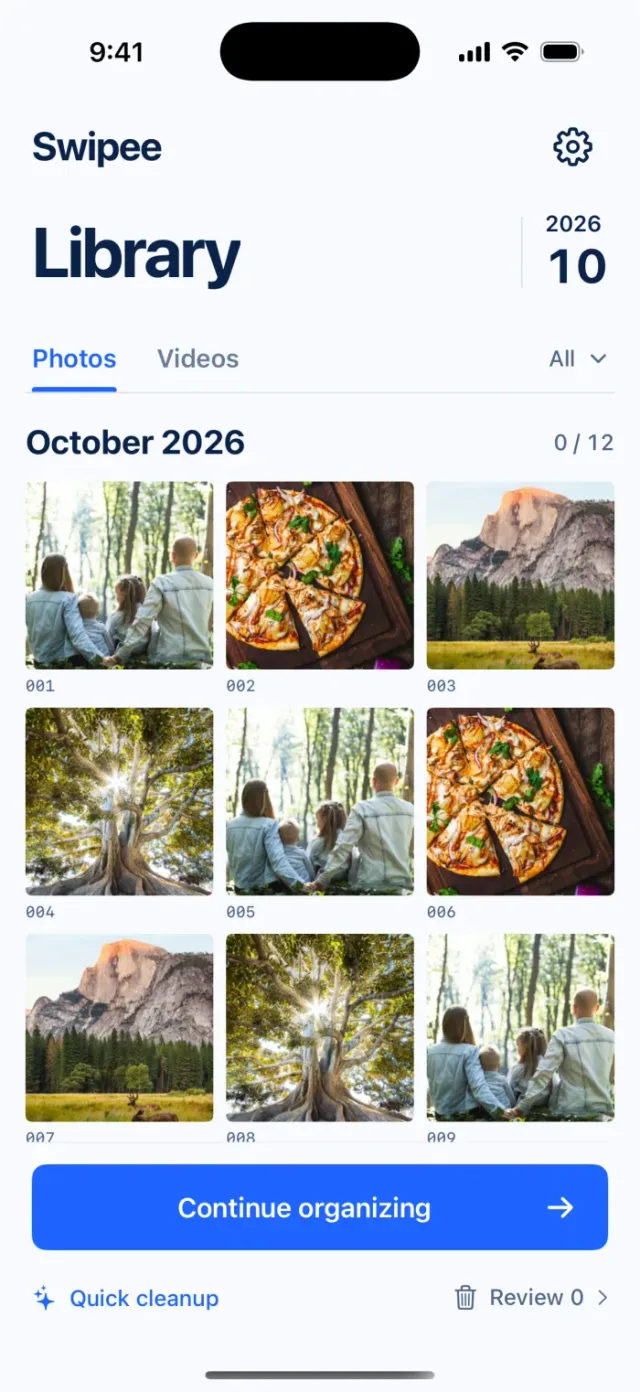
- Browse by month, one month at a time, and see your progress. Photos and videos are both supported.
- Photo comparison: check photos taken close together side by side (grouped by capture time, so they are not guaranteed to be duplicates), then choose to keep or mark each one.
- Quick Scan (Beta): checks on your device for photos you may not need, such as old screenshots and similar images. It suggests up to 20 at a time, leaves them unselected by default, and never deletes automatically; it can miss some or flag the wrong ones.
- Review before deleting: look over the items marked for deletion, undo them one by one or keep them all. The actual deletion still needs your confirmation in Apple’s Photos system prompt.
A quick reminder: photos deleted with Swipee or the built-in tools also go to Recently Deleted first and are removed automatically after 30 days. Clear it by hand only if you need the space now, and back up anything important first, because permanent deletion can’t be undone.
Continue with the complete guide: iPhone photo library cleanup and storage guide →

Disclosure: Swipee is an app developed by this site's author (Charonyu). The built-in methods and other options described here all work without downloading our app.
FAQ
I deleted lots of photos. Why didn't my iPhone storage go up?
Deleted photos stay in Recently Deleted for 30 days and still use space during that time. If you're sure you don't need them, or they're already backed up, you can delete them permanently from Photos > Collections > Utilities > Recently Deleted. The storage number can also take a while to update.
If I turn on Optimize iPhone Storage, will my photos disappear?
No. The full-resolution originals are uploaded to iCloud, and when the iPhone runs low on space it keeps smaller space-saving versions and downloads the originals when needed. Your iCloud plan has to be big enough for the whole library, though, and the first upload takes time and a network connection.
Does switching the camera to Most Compatible save space?
No, it uses more. High Efficiency uses HEIF/HEVC, which compresses better than JPEG/H.264. Most Compatible exists for compatibility, and its files are usually larger.
With iCloud Photos on, can I delete photos from my iPhone to save iCloud space?
Yes, but deletions sync. With iCloud Photos on, a photo you delete on your iPhone is also deleted from iCloud and your other devices.
Is there a faster way to go through my photos?
Clearing screenshots, long videos and duplicates first is the most efficient. For the photos that need a one-by-one decision, you can use Swipee to swipe through them month by month: swipe left to mark for deletion, right to keep.