 Charonyu
An app can only see some of your photos? How to change photo permissions on iPhone
An app sees only some photos because its photo access is set to Limited Access. On iOS 18 and later go to Settings > Apps > the app > Photos, or Settings > Privacy & Security > Photos, and switch to Full Access or pick different photos.
 Charonyu・Guide・

Quick answer
An app sees only some of your photos because you chose Limited Access (share selected photos only). To change it on iOS 18 and later, go to Settings > Apps > the app > Photos. You can also go to Settings > Privacy & Security > Photos to see every app that has asked for photo access. Choose Full Access to let it see your whole library. To stay on Limited Access, you can reselect which photos to share on the same page.
What photo permissions are there?
Since iOS 17, an app’s photo permission falls into roughly these levels (names may vary a little by iOS version):
| Permission | What the app can do | Good for |
|---|---|---|
| None | Can’t read your library | Apps that don’t need photos at all |
| Add Photos Only | Can only save photos into your library and can’t see existing ones (only appears for some apps) | Apps that only need to save images |
| Limited Access | Sees only the photos you picked | Apps where you only occasionally upload a few photos |
| Full Access | Sees your entire library | Backup, photo cleanup and photo editing apps |
Many apps also use the system photo picker when you “choose a photo to upload”. Only the photos you tap in the picker are handed to the app, and no library permission is needed. So even with the permission set to None, some apps still let you pick photos to upload.
How do I change the permission?
iOS 18 and later
- Open Settings and scroll to the bottom to tap Apps.
- Find the app, tap it, then tap Photos.
- Choose Full Access, Limited Access or None.
Or go to Settings > Privacy & Security > Photos. It lists every app that has asked for photo access so you can review them all at once.
iOS 17 and earlier
Settings > scroll down to the app list, tap the app > Photos. Or enter from Settings > Privacy & Security > Photos in the same way.
Just want to share a few more photos
Stay on Limited Access and edit the selected photos on the same page. Note that under Limited Access, photos you take later aren’t added automatically, so you have to pick them again when needed.
Why does a photo cleanup app need Full Access?
Cleaning up a library involves browsing by month, finding similar and duplicate photos, and deleting the ones you don’t want. All of that needs the app to see every photo. If you give it only some:
- The app can only clean up the photos you picked, and other months look empty.
- Photo comparison misses things, because another photo taken at nearly the same time isn’t in the visible set.
- You’d have to go back to Settings to add every new photo, which makes regular cleanup impractical.
This is a limitation shared by all cleanup apps, not a problem with any particular one.
How to weigh the privacy trade-off
Before granting Full Access, think about three things:
- Does the app really need to see all your photos? For shopping or social apps where you only occasionally upload, Limited Access or the system picker is usually enough.
- Are your photos uploaded? Check the app’s privacy policy or the “App Privacy” section on its App Store page.
- You can change it any time: the permission isn’t decided once and for all. After cleaning up, you can switch back to Limited Access or None.
Also, since iOS 16 the Hidden album in the Photos app is locked by default and needs Face ID, Touch ID or your passcode to view. To protect photos you share, see How do I remove location data from photos before sending them?
Clean up your whole library with Swipee
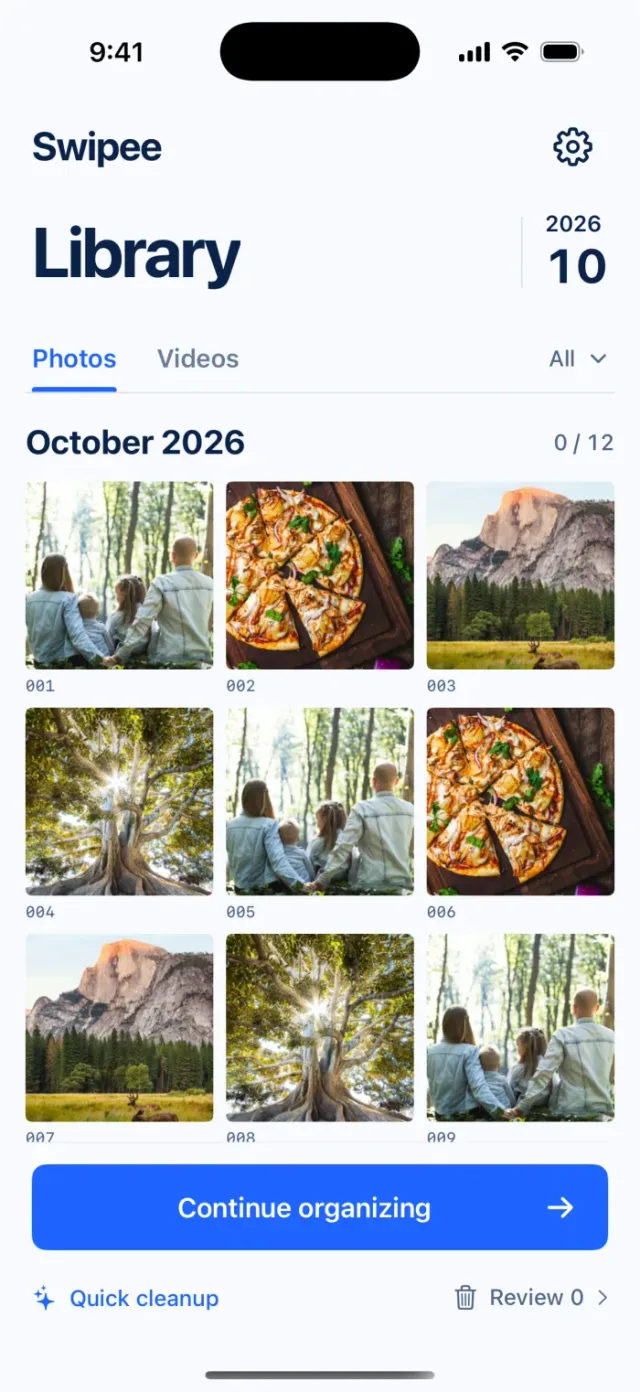
Swipee is a photo cleanup app. Like other cleanup tools, it needs photo access to show and organize your photos, and it needs Full Access to clean up the whole library.
- Browse by month and clean up one month at a time, with monthly progress tracking.
- Swipe left to mark for deletion, swipe right to keep, swipe up to add to Favorites and swipe down to add to a chosen album. You can undo.
- Photo comparison (side-by-side checking of photos taken close together in time), Quick Scan (Beta) and content category suggestions (topic or people grouping suggestions that may be inaccurate and don’t identify people by name) help you find photos to check faster.
For methods, see Too many photos on your iPhone? How to clean them up quickly.
Tip: when an app deletes photos, iOS first shows a system confirmation dialog. Photos are only deleted after you agree, and they go to Recently Deleted for 30 days first. When you see the dialog, check that the number of photos is right before you tap.
Continue with the complete guide: iPhone photo library cleanup and storage guide →
Steps
- 1
Allow photo access
The first time you open Swipee, allow photo access when the system asks. Choose Full Access if you want to clean up your whole library.
- 2
Pick a month to start
Browse photos by month. Swipe left to mark for deletion, right to keep, up to add to Favorites, and down to add to a chosen album. You can undo.
- 3
Review, then delete
Review the items marked for deletion and restore them one by one or keep them all. The actual deletion still needs confirmation from Apple's Photos system. Deleted photos go to Recently Deleted first, and you can recover them within 30 days as long as you haven't permanently deleted them there.
Disclosure: Swipee is an app developed by this site's author (Charonyu). The built-in methods and other options described here all work without downloading our app.
FAQ
What's the difference between Limited Access and Full Access?
Limited Access lets the app see only the photos you picked, and all other photos don't exist as far as it's concerned. Full Access lets it see your whole library. Under Limited Access, new photos you take aren't added automatically, so you have to pick them again.
Do I need to give Full Access just to upload one photo?
Usually not. Many apps use the system photo picker, which hands over only the photos you select, without opening your whole library. Choosing None or Limited Access is usually enough.
Why does a photo cleanup app need Full Access?
The point of cleanup is to look through all your photos and find duplicates and ones you don't want. With partial access, the app can only clean up the few photos you picked and can't see photos from other months.
The app still sees only some photos after I changed the permission?
Fully close the app and reopen it so it reloads your library, and go back to Settings to confirm the permission is really set to Full Access.