 Charonyu
Deleted lots of photos but iPhone storage didn't increase?
The most common reason is that the photos are still in Recently Deleted for 30 days. Next: with Optimize iPhone Storage on, the phone only holds small versions, so deleting saves little. Or the space may be going to app caches (LINE, etc.) or System Data.
 Charonyu・Article・

Quick answer
Deleted photos go to Recently Deleted first, where they are kept for 30 days and still take up space. Go to Photos, then Albums, then Utilities, then Recently Deleted, and delete them permanently by hand to release the space. If you have iCloud Photos set to Optimize iPhone Storage, your phone only holds reduced versions to begin with, so deleting photos saves less than you would expect. If space is still short after deleting, go to Settings, then General, then iPhone Storage; LINE or other apps, or System Data, may be taking the most.
Reason 1: The photos are still in Recently Deleted
Apple says deleted photos and videos stay in the Recently Deleted album for 30 days before being permanently removed. This lets you rescue photos you deleted by mistake, at the cost of the space not coming back right away.
To empty it by hand (iOS 26 as an example):
- Open the Photos app and tap Albums.
- Under Utilities, tap Recently Deleted, tap View Album, and unlock with Face ID, Touch ID, or your passcode.
- Tap Select, choose the items to delete permanently, tap the More button, and choose Delete.
Permanent deletion cannot be undone, so make sure there is nothing you want to keep.
Reason 2: Optimize iPhone Storage is on
With iCloud Photos on and Optimize iPhone Storage selected, the full-resolution originals live in iCloud and your iPhone keeps space-saving versions. This means:
- Each photo already takes less space on your phone than the original file, so deleting a thousand of them may free only a little.
- Deletion syncs to iCloud and your other devices, so what you mainly save is iCloud space, not phone space.
To check the setting: Settings, tap your name, then iCloud, then Photos. If you want more room on your phone without deleting photos, keeping Optimize iPhone Storage on is the most direct built-in way. For details see iPhone storage full: what to do when photos take too much space.
Reason 3: The number hasn’t been recalculated yet
The figure on the iPhone Storage screen takes time to calculate, so checking right after deleting may still show the old number. Leave Settings, wait a bit, and look again.
Reason 4: It isn’t photos taking the space
Go to Settings, then General, then iPhone Storage. At the top are used and available space, and below that apps are listed by size. Common cases:
- Messaging apps: photos, videos, and caches from chat apps such as LINE (the popular messenger in Taiwan) can take several GB. Deleting photos in the Photos app does not delete files stored inside chat apps; clear the cache or chat data in that app’s own settings.
- Downloads in media apps: videos and music downloaded for offline use.
- The Files app: files downloaded to On My iPhone.
- System Data: at the bottom of the list, covering logs, caches, and other system-managed data. Apple notes that the device automatically removes some temporary files when space is low; you cannot clear this directly yourself.
Tap an app in the list to see how much it uses, and choose Offload App (keeps its data) or Delete App.
Checklist
| What to check | Where to look | What to do |
|---|---|---|
| Recently Deleted | Photos, then Albums, then Utilities | Select and delete permanently |
| Optimized storage | Settings, then your name, then iCloud, then Photos | Understand that deleting photos mainly saves iCloud space |
| Space per app | Settings, then General, then iPhone Storage | Clear chat app caches, delete downloads |
| Number not updated | Same screen | Leave Settings and check again later |
Keep tidying with Swipee so storage stops filling up
Storage trouble usually comes back because you shoot and save every day. Swipee fits cleanup into a small regular habit:
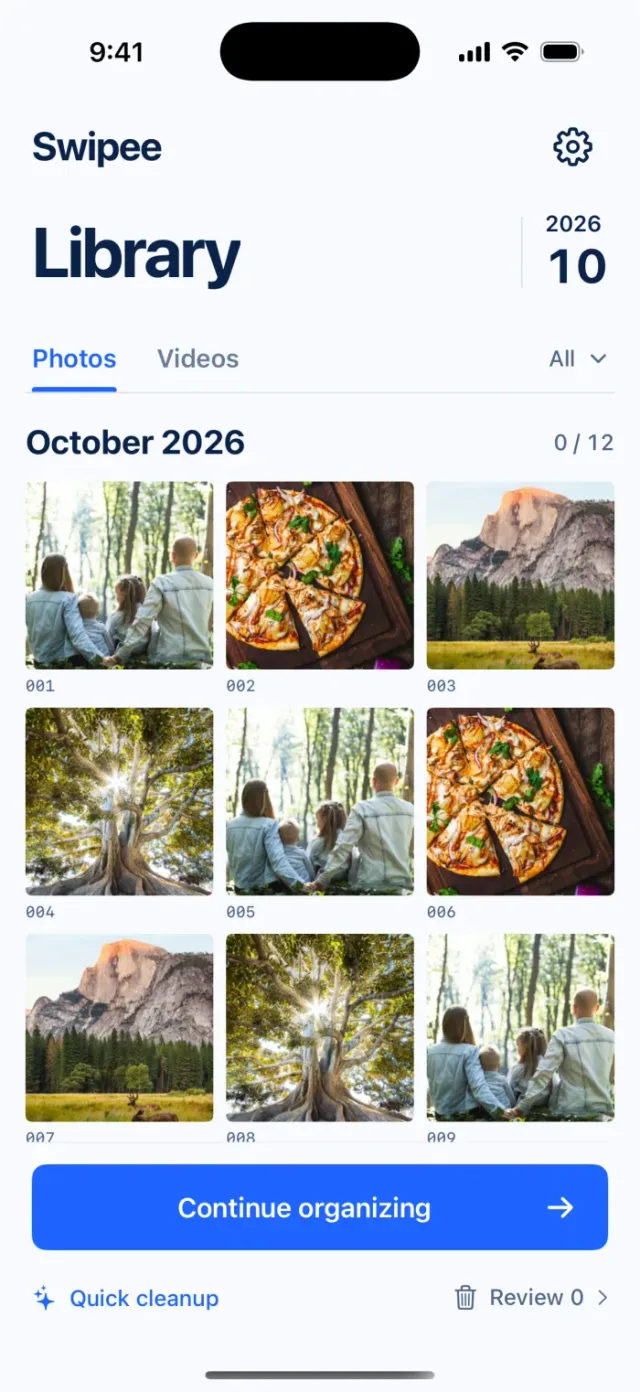
- Browse by month, tidy one month at a time, and track your progress each month.
- Swipe left to mark for deletion, swipe right to keep. Swipe up to add to Favorites, swipe down to add to a chosen album. You can undo.
- Photo comparison: check photos taken close together side by side (grouped by shooting time, so they are not guaranteed to be duplicates), look at each, then choose to keep or mark for deletion.
- See your cleanup progress, and look through both photos and videos before deciding.
To see why cleanup never seems to finish, read Why does tidying your photo library never end?
A note: deleting with Swipee still needs confirmation from the Apple Photos system, and deleted photos still go to Recently Deleted first. After finishing a batch, go back to the Photos app and empty it, or the space will not actually increase.
Continue with the complete guide: iPhone photo library cleanup and storage guide →

Disclosure: Swipee is an app developed by this site's author (Charonyu). The built-in methods and other options described here all work without downloading our app.
FAQ
How long do deleted photos stay in Recently Deleted?
Apple says 30 days. During that time you can recover them or delete them permanently by hand. After 30 days they are permanently removed from your iPhone, iCloud, and other devices on the same Apple Account.
How long after I empty Recently Deleted does the space show up?
Usually quickly, but the number on the iPhone Storage screen takes a while to recalculate. Leave the Settings screen, wait a moment, and come back.
What happens if I delete photos on my iPhone with iCloud Photos on?
The deletion syncs. iCloud and every other device signed in to the same Apple Account with iCloud Photos on delete them too. To keep photos in the cloud and only free up phone space, use Optimize iPhone Storage instead of deleting.
Can I manually delete a large "System Data"?
There is no button to clear it directly. It contains logs, caches, and other data managed by the system, and the system clears part of it automatically when space runs low.