 Charonyu
iPhone widget not updating, black, or photo missing? How to fix it
iOS decides when widgets update, so they are never truly real time. If one is stale, open the app once, check Background App Refresh and Low Power Mode, then check photo and location permissions. For a black or blank widget, removing and re-adding it or restarting usually fixes it.
 Charonyu・Guide・

Quick answer
Widgets do not update in real time: iOS allots updates based on how often you see the widget and how often the app is used. When one is stale, first open the app once, then check that Settings, then General, then Background App Refresh is on, whether Low Power Mode is on, and whether permissions such as photos and location have been turned off. When a widget goes black, blank, or loses its photo, the most effective fix is to remove the widget and add it again; if that doesn’t work, restart the phone and update the app.
Why don’t widgets update in real time?
Apple’s developer documentation says widgets have a daily update “budget”: a widget that is viewed often typically gets 40 to 70 updates a day, roughly once every 15 to 60 minutes, and the actual interval varies with several factors. These include:
- How often and how long the widget is seen.
- When it was last updated.
- Whether its app is in use.
So for data like weather, exchange rates, and step counts, a number that lags by tens of minutes is normal. When you open the app, it can ask the system to update its widgets immediately, which is why opening the app updates them right away.
Widget not updating: check in order
- Open the app once: lets it fetch new data and tell the widget to update.
- Background App Refresh: go to Settings, then General, then Background App Refresh, and confirm both the main switch and that app are on.
- Low Power Mode: Apple says Low Power Mode turns off Background App Refresh and pauses iCloud Photos, among other things. On iPhone 15 and later it is under Settings, then Battery, then Power Mode; on iPhone 14 and earlier it is under Settings, then Battery. A yellow battery icon means it is on.
- Network: data that needs internet, such as weather, exchange rates, and news, may not update with no connection or in Low Data Mode.
- Storage: when the iPhone is nearly full, an app may be unable to save new data properly. Check under Settings, then General, then iPhone Storage.
Check permissions: the widget can’t read the data
A widget uses the app’s permissions, so if a permission is off, the widget shows blank or old data:
| Widget type | Permission needed | Where to check |
|---|---|---|
| Photos | Photo access | From iOS 18: Settings, then Apps, then that app, then Photos |
| Weather (by location) | Location Services | Settings, then Privacy & Security, then Location Services, then that app |
| Steps | Motion & Fitness, or Health data (depends on the app) | Settings, then Privacy & Security |
When photo permission is set to Limited Access, the app only sees the photos you picked; if the photo a widget uses is not among them, it will not display. See App can only see some photos? How to change iPhone photo permissions. With location set to Never, weather that depends on your location cannot update either.
Widget is black, blank, or the photo is missing
- Photo deleted: if the photo the widget uses was deleted from your library, it can’t be read. Pick a photo again in the app.
- Home Screen appearance setting: from iOS 18, when you change icons to a dark or tinted look under Edit, then Customize on the Home Screen, widgets get the same treatment and may look darker. Switch back to the default appearance and try again.
- Remove and add again: touch and hold the widget and choose Remove Widget; then touch and hold an empty area of the Home Screen, tap Edit, then Add Widget, and add it again. This solves most display problems.
- Restart: after system or app updates there can be temporary display glitches, and restarting often fixes them.
- Update the app and iOS: check the App Store to make sure the app is the latest version; developers often fix widget problems in updates.
Quick reference by symptom
| Symptom | Most likely cause | Try first |
|---|---|---|
| Numbers lag a little | iOS update budget | Open the app once |
| No update for hours | Background refresh off, Low Power Mode | Check both settings |
| Weather location is wrong | Location permission | Check Location Services permission |
| Photo is blank | Photo deleted, access limited | Pick the photo again, check permission |
| Whole widget is black | Appearance setting or a temporary glitch | Switch appearance back, remove and re-add, restart |
When Lumee widgets have problems
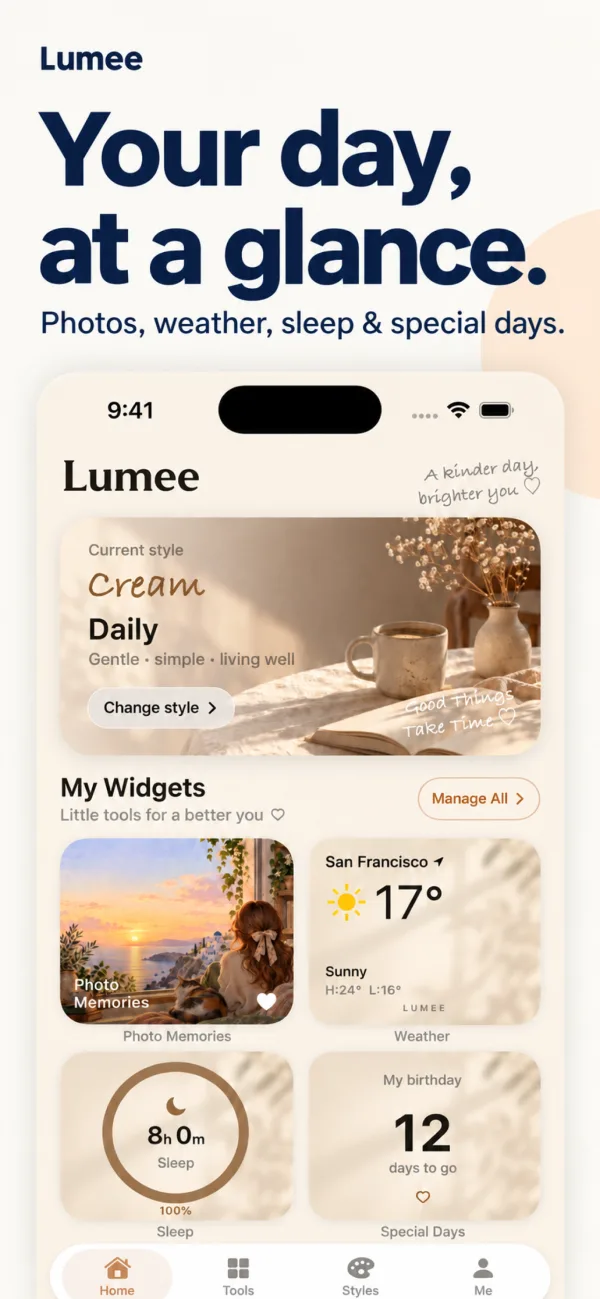
The photo memory, weather, steps, and important-day widgets in Lumee follow the same iOS rules above, so you can work through them in this order:
- Open Lumee once and confirm the photos or settings the widget uses are still there.
- Check permissions such as photos and location, and Background App Refresh.
- Remove the widget and add it again, and restart if needed.
If it still doesn’t work, email us from Lumee support and contact, including your model, iOS version, which widget it is, and a screenshot, which helps us find the cause faster. If you want to redesign your Home Screen, see How to put your own photo widgets on the iPhone Home Screen.
A note: widget update timing is allotted by iOS as a whole, and no app can make a Home Screen widget update every second in real time. Numbers lagging by tens of minutes are within the normal range, and opening the app once shows the latest data.
Continue with the complete guide: iPhone Home Screen widgets and photo layout guide →
Steps
- 1
Open Lumee and check the content
Open Lumee once and confirm the photos or settings the widget uses are still there, which also gives the app a chance to refresh its data.
- 2
Remove it and add it again
Touch and hold the widget and choose Remove Widget. Then touch and hold an empty area of the Home Screen, tap Edit, then Add Widget, search for Lumee, and add the size you want.
- 3
If it still doesn't work, contact us
If it still won't display after the steps above, email us from the Lumee support page and tell us your model, iOS version, and which kind of widget it is.
Disclosure: Lumee is an app developed by this site's author (Charonyu). The built-in methods and other options described here all work without downloading our app.
FAQ
How often does a widget update?
iOS decides, and it is not real time. Apple's developer documentation says a widget that is viewed often typically gets a budget of 40 to 70 updates a day, roughly one every 15 to 60 minutes, and the actual interval varies with usage.
Why does the widget update when I open the app?
While an app runs in the foreground it can ask the system to reload its widgets, so opening the app once often makes the data update right away.
A photo widget suddenly went blank. Was the photo deleted?
Possibly. If the photo the widget uses was deleted from your library, or the app's photo permission was changed to None or limited, the widget can no longer read that photo. Check that the photo is still in your library, then check the permission.
Does Low Power Mode affect widgets?
Apple says Low Power Mode turns off background activity such as Background App Refresh. Widgets that rely on background data updates may therefore update more slowly.