 Charonyu
How to add widgets to your iPhone Lock Screen
On iOS 16 and later, press and hold the Lock Screen > Customize > choose the Lock Screen > tap the widget area or Add Widgets. Up to 4 small or 2 rectangular widgets fit under the time, and iOS 26 lets you move them to the bottom. Lumee also offers weather, countdown and step widgets.
 Charonyu・Guide・
Quick answer
An iPhone on iOS 16 or later can have widgets on the Lock Screen. Unlock it but stay on the Lock Screen, press and hold the screen > tap Customize > choose the Lock Screen, then tap the widget area under the time (or “Add Widgets”), pick the widgets you want from the list, and tap Done. The row under the time holds up to 4 small or 2 rectangular widgets, and from iOS 26 you can also move widgets to the bottom of the screen. For weather, countdown days and step count, you can use Lumee’s Lock Screen widgets.
How do I add a widget to the Lock Screen?
Using iOS 26 as an example:
- Unlock with Face ID, Touch ID or your passcode but don’t swipe up, so you stay on the Lock Screen.
- Press and hold the Lock Screen until the “Customize” button appears at the bottom, then tap it.
- Choose the Lock Screen to edit (not the Home Screen).
- Tap the existing widgets under the time, or tap “Add Widgets”.
- From the list below, tap the widget you want or drag it into the widget area. To remove a widget, tap the minus on its corner.
- Tap “Done”.
If you want a different set of widgets without changing your current Lock Screen, in step 2 press and hold the Lock Screen and tap the plus button to create a new Lock Screen.
What are the limits of Lock Screen widgets?
| Position | Widgets allowed | How many |
|---|---|---|
| Under the time (or the bottom of the screen from iOS 26) | Small (circular / square), rectangular | Up to 4 small, 2 rectangular, or 1 rectangular + 2 small |
| Date line above the time | One-line text | 1 |
Also worth knowing:
- Not every app has Lock Screen widgets. An app only shows up in the list if it provides them.
- Lock Screen widgets usually appear in a single color that matches the time, unlike the full-color widgets on the Home Screen.
- From iOS 26, the widget area can sit under the time or at the bottom of the screen. If you make the time larger, the widgets may move to the bottom automatically.
- Widgets are set separately for each Lock Screen.
Show different widgets at different times
You can link a Lock Screen to a Focus: press and hold the Lock Screen > tap Focus near the bottom of the screen > choose a mode (for example Work). From then on, when that Focus is on, your iPhone switches to this Lock Screen and its widgets. See your calendar and weather at work and your countdown days and step count after work, without switching by hand every day.
Add Lock Screen widgets with Lumee
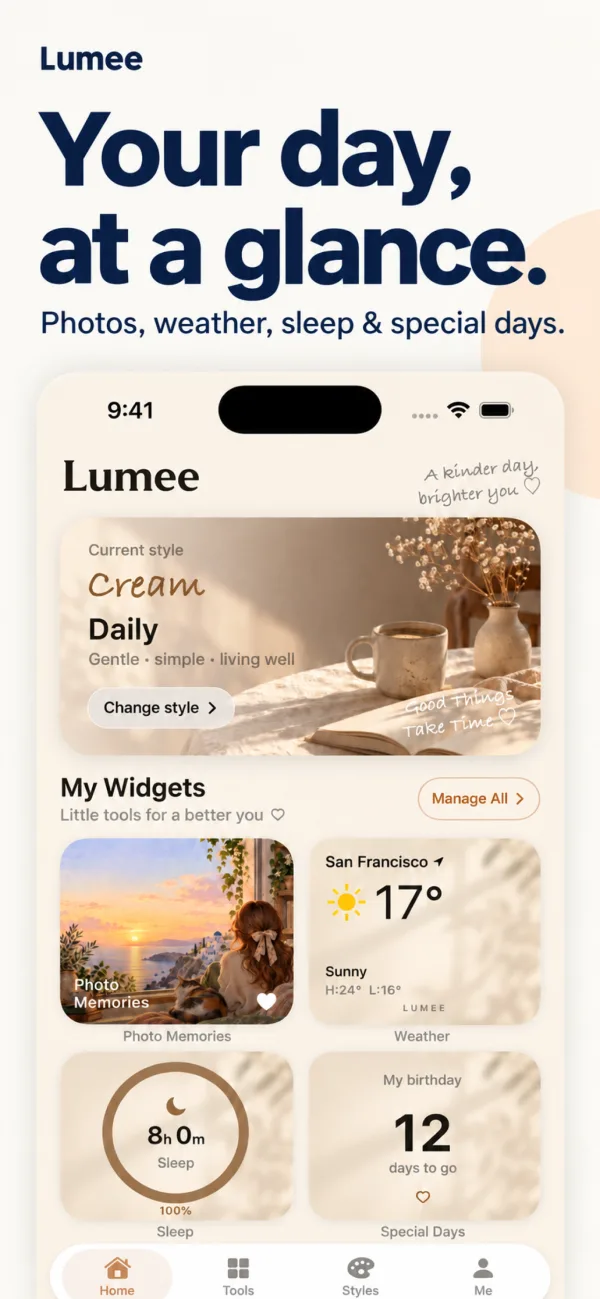
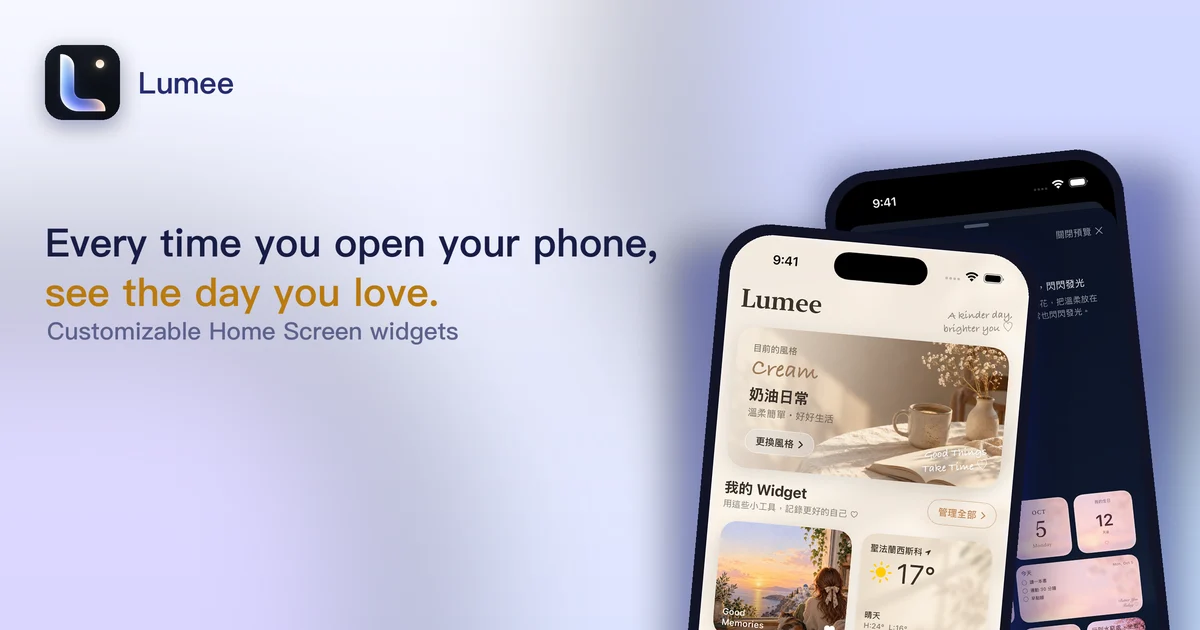
The built-in widgets already cover weather, Calendar, Reminders and more. If you also want countdown days and step count on the Lock Screen, in a style that matches your Home Screen, you can use Lumee:
- Lock Screen widgets: weather, countdown, step count and more, visible as soon as you pick up your phone (the system decides how often they update, so they’re not always real time).
- Home Screen widgets: Photo Memories, important days, weather, calendar, world clock, quote of the day, step count, water, sleep, rest between sets, to-dos, e-invoice carrier barcode (a Taiwan e-receipt barcode), exchange rates, horoscope, international news and more.
- 17 styles: Cream, Sky, Rosy, Night, Pixel Arcade, Game HUD and more. 5 are free and Pro unlocks all.
To coordinate the Lock Screen and Home Screen, see “How to customize your iPhone Home Screen”. To put your own photos on the Home Screen, see “How to put your own photos in a widget on iPhone”.
The steps are as follows.
A heads-up: Lock Screen widgets usually show even before the iPhone is unlocked, so people nearby can see them too (some apps hide sensitive content while locked, but don’t assume that). Before adding something private like your schedule or to-dos, think about whether it’s okay to show on the Lock Screen.
Continue with the complete guide: iPhone Home Screen widgets and photo layout guide →
Steps
- 1
Set up your content in Lumee
Open Lumee and set the info you want to show, such as weather, a countdown day or your step count.
- 2
Open Lock Screen editing
Unlock your iPhone and stay on the Lock Screen, press and hold the screen > Customize > choose the Lock Screen, then tap the widget area.
- 3
Add the Lumee widget
Find Lumee in the widget list, tap it or drag it into the widget area, then tap Done.
Disclosure: Lumee is an app developed by this site's author (Charonyu). The built-in methods and other options described here all work without downloading our app.
FAQ
What iOS version do Lock Screen widgets need?
iOS 16 or later. From iOS 26, widgets can also be moved from under the time to the bottom of the Lock Screen.
How many widgets can I put on the Lock Screen?
The row under the time holds up to 4 small widgets, or 2 rectangular widgets, or 1 rectangular plus 2 small ones. The date line above the time can also hold one text widget.
Why doesn't Customize appear when I press and hold the Lock Screen?
Your iPhone needs to be unlocked with Face ID, Touch ID or your passcode first, but stay on the Lock Screen without swiping up. Then press and hold the screen to edit.
Can different Lock Screens have different widgets?
Yes. Widgets are set separately for each Lock Screen, and you can link a Lock Screen to a Focus so it switches automatically when you change Focus.
Which Lock Screen widgets does Lumee have?
Lumee offers Lock Screen widgets for weather, countdown, step count and more. The system decides how often widgets update, so they're not always real time.