 Charonyu
How to put your own photos in a widget on iPhone
Press and hold an empty spot on the Home Screen > Edit > Add Widget > Photos to add the built-in Photos widget. From iOS 17 you can pick an album to cycle through in Edit Widget, but you can't choose a single photo directly. For a fixed favorite photo in different styles, use Lumee.
 Charonyu・Guide・
Quick answer
iPhone already has a built-in Photos widget: press and hold an empty spot on the Home Screen > tap Edit at the top of the screen > Add Widget > choose Photos, then pick a size and add it. The built-in widget automatically cycles through photos chosen by the system. From iOS 17 you can add the Album style instead, then press and hold the widget > Edit Widget to choose an album. If you only want to show one photo, create an album containing just that photo. To use photos you choose yourself, in different styles, you can use Lumee’s photo widgets.
Method 1: Add the built-in Photos widget
Using iOS 26 as an example:
- Go to the Home Screen page where you want the widget and press and hold the background until the apps start to jiggle.
- Tap “Edit” at the very top of the screen, then tap “Add Widget”.
- Scroll or search to find “Photos”, tap it, and swipe left and right to see the different sizes and styles.
- After choosing, tap “Add Widget”, drag it where you want it, and tap “Done”.
As you swipe you’ll see different styles. Featured Photos automatically shows photos the system picks from your library and changes them over time. From iOS 17 there’s also an Album style where you choose the album (see Method 2).
Method 2: Make the built-in widget show one album (iOS 17 and later)
- In the Photos app, create an album and add the photos you want to see on your Home Screen.
- When adding the Photos widget, swipe to choose the “Album” style and add it. (If you had added the Featured Photos style, you’ll need to add a separate Album-style widget.)
- Press and hold this widget, tap “Edit Widget”, tap the name of the album currently shown, choose the album you just created, and tap an empty spot to finish.
If you want to show one fixed photo, put only that photo in the album. This is the closest the built-in features come to picking a single photo.
Limits of the built-in Photos widget
- You can’t pick a single photo directly. You can only point it at an album and let it cycle.
- Few appearance options: no borders, text or themes to adjust.
- On iOS 18 and later, if you set icons to Dark or Tinted under Edit > Customize, the widget takes on the same look.
Method 3: Use Lumee for photos you choose yourself
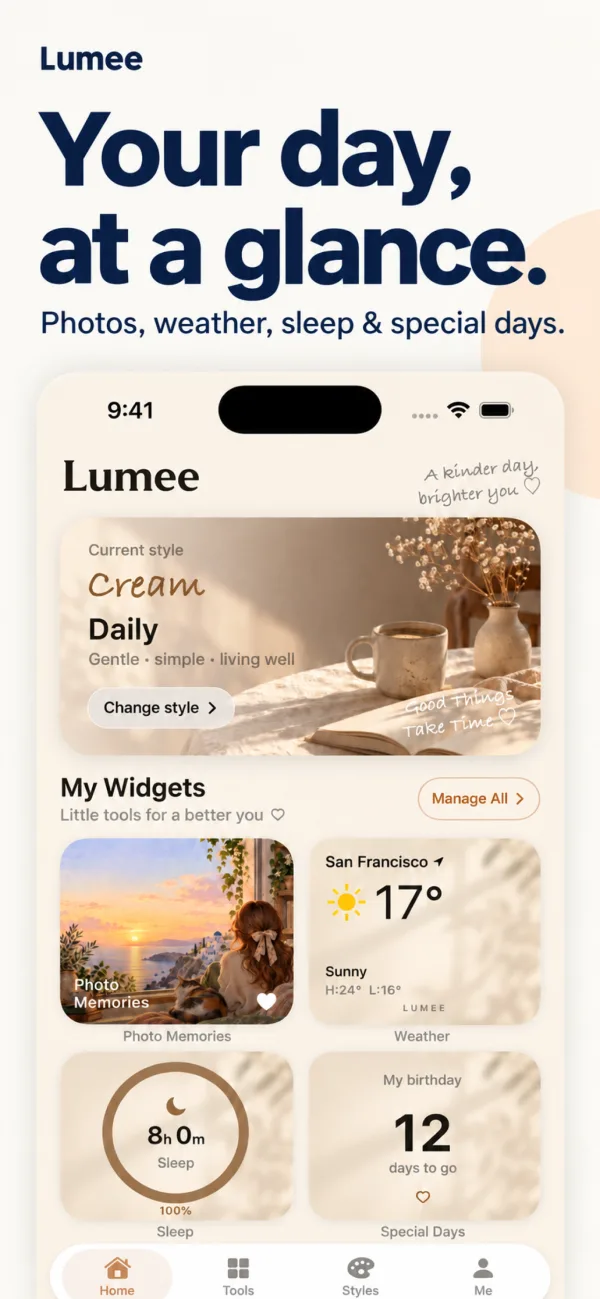
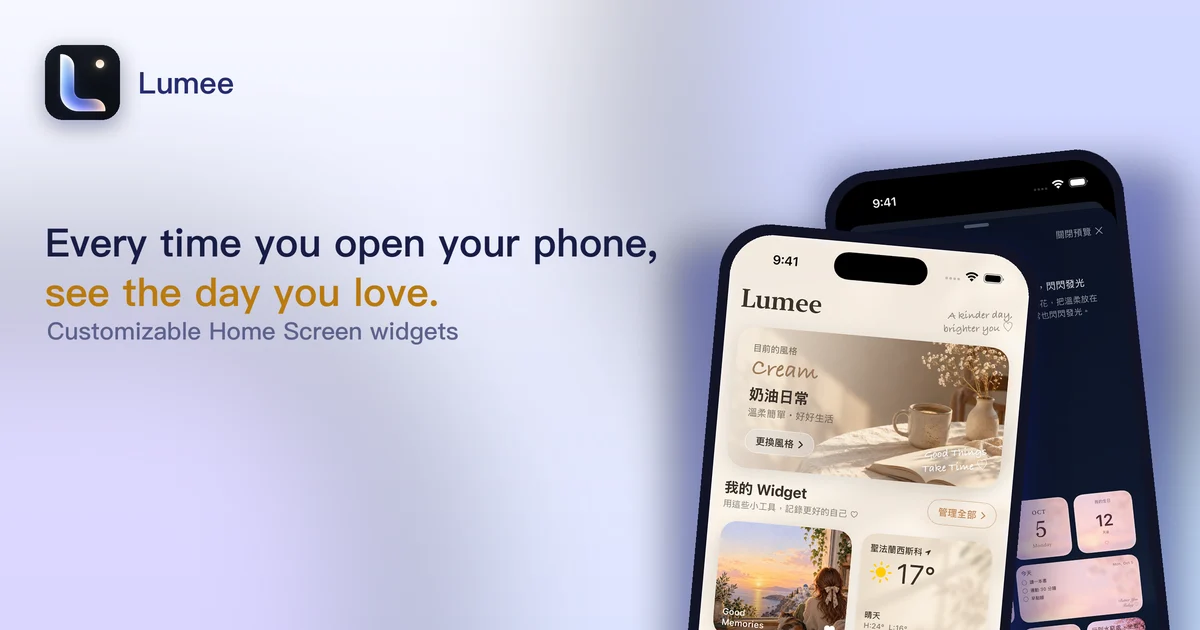
Lumee is a widget app for building your Home Screen, and photo widgets are one of its main features:
- Your own photos: pick a few photos you love and turn them into a photo widget.
- 17 styles: Cream, Sky, Rosy, Night, Pixel Arcade, Game HUD and more. 5 are free and Pro unlocks all.
- The same app also has everyday widgets for important days, weather, calendar, world clock, quote of the day, step count, water, sleep, to-dos, exchange rates, horoscope and international news, so you can lay out your whole Home Screen together with your photos.
The steps are as follows.
Comparing the methods
| Method | Photo source | Can change style | Cost |
|---|---|---|---|
| Built-in Photos widget (default) | Featured photos picked by the system | No | Free |
| Built-in + chosen album (iOS 17 and later) | An album you choose, cycled | No | Free |
| Lumee photo widget | Photos you choose yourself | Yes | Free to use; Pro is a one-time NT$120 purchase |
To unify your whole Home Screen style, continue with “How to customize your iPhone Home Screen”. If you also want info on the Lock Screen, see “How to add widgets to your iPhone Lock Screen”.
A heads-up: to enter edit mode, press and hold an empty spot with no icon on the Home Screen. Pressing and holding an app icon brings up that app’s quick actions menu first.
Continue with the complete guide: iPhone Home Screen widgets and photo layout guide →
Steps
- 1
Choose photos
Open Lumee and pick a few photos you want on your Home Screen.
- 2
Choose a style
Pick one of the 17 styles, such as Cream, Sky or Night. The home screen and widgets change together.
- 3
Add it to your Home Screen
Press and hold an empty spot on the Home Screen > Edit > Add Widget, search for Lumee, choose a size and add it.
Disclosure: Lumee is an app developed by this site's author (Charonyu). The built-in methods and other options described here all work without downloading our app.
FAQ
Can the built-in Photos widget show just one specific photo?
Not directly. From iOS 17 you can add a Photos widget in the Album style, then choose an album for it to cycle through in Edit Widget. So the workaround is to create an album with only one photo and point the widget at it, or to use a widget app that lets you choose photos.
Can I choose which photos the Photos widget shows?
The built-in widget has two styles: Featured Photos shows photos picked by the system, and from iOS 17 there's also an Album style where you choose the album. With Lumee, you pick the photos you like yourself.
How do I change a widget after adding it to the Home Screen?
Press and hold the widget, tap Edit Widget to change what it shows and other options, then tap Done when you're finished.
Does Lumee cost money?
It's free to download and use, and 5 styles are free. Lumee Pro is a one-time NT$120 purchase that unlocks all styles and features permanently, with no monthly subscription.