 Charonyu
Photo is under 2MB and a JPG, but the site still says wrong format?
The most common cause is that the file is not really a JPG (for example a HEIC with just a renamed extension). Next: pixel size or aspect ratio mismatch, special characters in the file name, or a size right on the 1000/1024 boundary. Work through the checklist below and you will usually find it.
 Charonyu・Article・

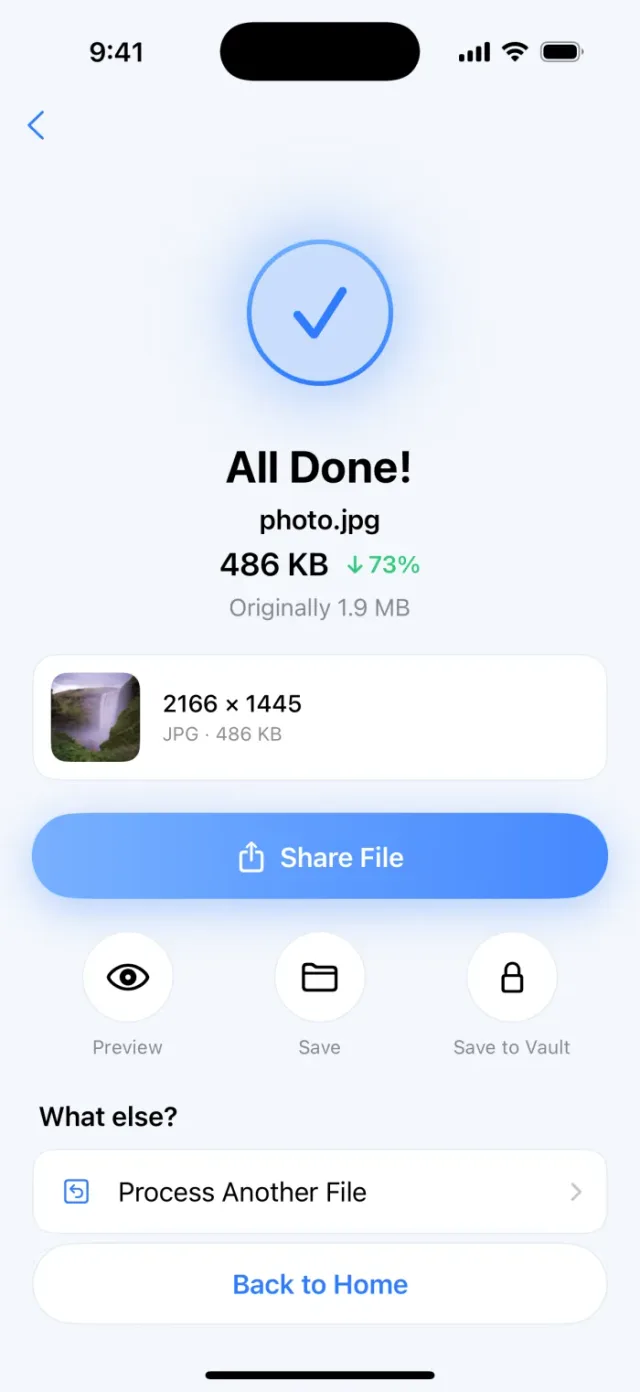
PassSize, mentioned in this guide, is currently in review · coming soon and can't be downloaded yet. Until it launches, you can use the built-in methods described here; this spot will turn into a download link once it is live.
Quick answer
A “wrong format” error is not always really about format. Check in order of how common they are: 1. is the file really a JPG (a HEIC renamed to .jpg is still blocked), 2. does the pixel size or aspect ratio meet the rules, 3. does the file name have Chinese characters, spaces, or special symbols, 4. is the size right on the 1000/1024 boundary, 5. is it a problem with the browser or the site itself. The fastest fix is to re-export a real JPG with a conversion tool, confirm the pixels, and upload it with a plain English-and-digits file name.
1. Confirm it is a “real” JPG
This is the most common cause. iPhones shoot HEIC (HEIF) by default, and if you only rename the file to .jpg, the contents are still HEIC, so sites that check the file contents will reject it.
How to check:
- Photos app: open the photo and swipe up or tap the info button. The info panel shows camera details and file size, and usually labels it HEIF or JPEG.
- Files app: touch and hold the file, tap Get Info, and see what “Kind” says.
How to fix it: output a JPEG with a real conversion tool, such as Convert Image in the Files app, export from the Preview app (from iOS 26), or the Convert Image action in Shortcuts. For detailed steps see How to convert HEIC photos to JPG on iPhone, and for background on the format see What is HEIC?
2. Does the pixel size and aspect ratio match?
Besides file size, many registration systems specify pixels, such as “600 wide by 800 tall” or “at least 1200 pixels”. Many sites show only a vague “wrong format” error when the size does not match.
- Check the pixel size in the Photos info panel (for example 4032 x 3024).
- Watch the orientation: 600x800 is portrait, and uploading 800x600 will be rejected.
- If a ratio is required (for example 3:4) and you upload 4:3 or 1:1, it will also fail.
If you need exact pixels, see How to crop a photo to exactly 600x800 without distortion.
3. Is there a problem with the file name?
Some older systems are picky about file names:
- Avoid symbols such as Chinese characters, spaces, parentheses, # and &.
- Avoid very long file names.
- Extension case: a few systems only accept
.jpg, not.JPGor.jpeg.
In the Files app, touch and hold the file, tap Rename, change it to a plain English-and-digits name like photo01.jpg, and try again.
4. The size is right on the boundary
When the file shows 1.99MB but the site says it is over 2MB, common causes are:
- The site counts in units of 1000 while the phone display uses another method, or the reverse.
- The displayed number is rounded, and the actual bytes are a little larger than you see.
- The rule says “under 2MB”, so exactly equal does not pass either.
The safe approach is to leave about 5% margin, for example compress to under 1.9MB for a 2MB limit. For the difference in counting, see Is 1MB 1000KB or 1024KB?
5. Other, less common causes
- Color mode: a few systems only accept RGB. Photos from an iPhone are RGB, but images from print files or design software may be CMYK and need to be re-exported.
- Uploading a PDF where an image is wanted (or the reverse): if the field says “image”, do not upload a PDF; for fields that want a PDF, some also limit the page count.
- Live Photos and videos: if you picked a Live Photo or video when sharing, what gets sent may not be a single still image. Select again and make sure it is a photo.
- Browser or in-app browser: when you open a registration link from LINE or Facebook, the in-app browser’s upload function is sometimes unreliable. Open it in Safari or Chrome, and if it still fails, upload from a computer.
Checklist
| What to check | How to see it on iPhone | What to do if it doesn’t match |
|---|---|---|
| Actual format | Photos info panel, Files then Get Info | Output a JPEG with a conversion tool |
| Pixel size / orientation | Photos info panel | Crop to the ratio first, then adjust pixels |
| File name | Files app | Rename to English and digits |
| File size | Photos info panel, Files then Get Info | Compress to the limit or a bit lower |
| Browser | Check which app opened the page | Switch to Safari/Chrome or a computer |
Handle format, size, and dimensions together with PassSize
Of the items above, “really convert to JPG”, “compress to a given size”, and “limit the dimensions” often need doing together. PassSize does it in one flow:
- Converts HEIC to JPG or PNG, as a real conversion and not a renamed extension.
- Choose 500KB, 1MB, 2MB, or a custom size, counted in units of 1000 with about a 2% buffer kept.
- You can limit the dimensions, for example 1200x1200, or just type “1200x1200 to JPG”.
- Advanced options let you choose whether to keep photo info such as shooting time and location; it is not kept by default.
- Everything is processed on your iPhone and nothing is uploaded.
A note: PassSize handles format, size, and dimensions. You still need to check the aspect ratio and composition yourself. If the site requires a fixed ratio, crop first and then compress, and compare against the site’s rules once more before submitting.
Continue with the complete guide: The complete guide to compressing photos and PDFs on iPhone →
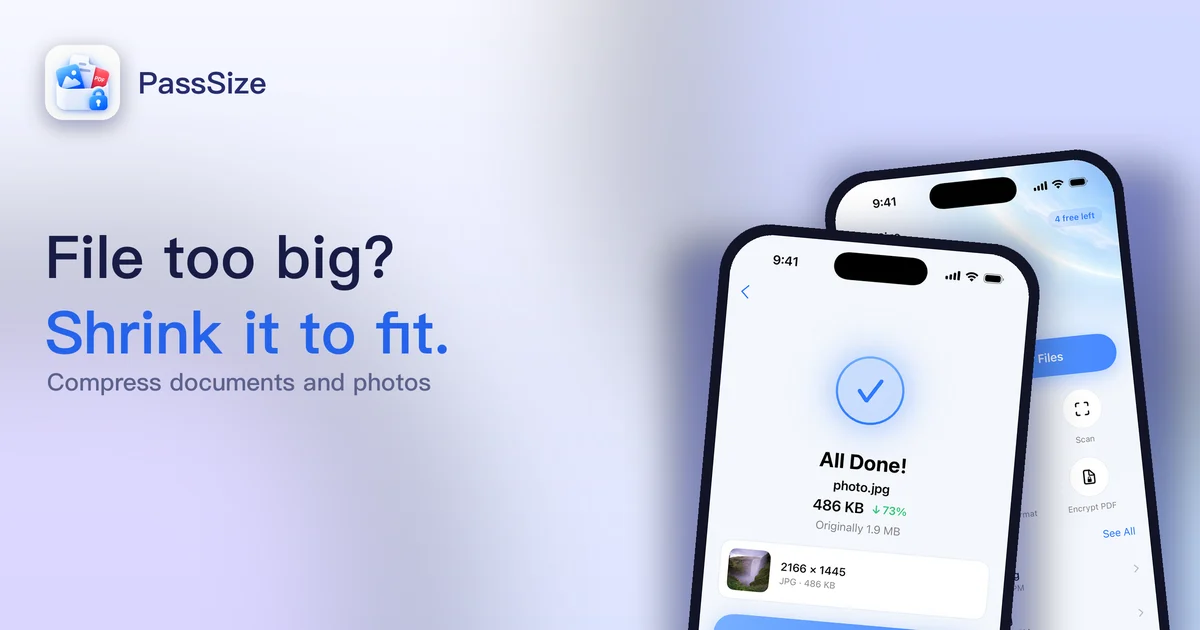
Disclosure: PassSize is an app developed by this site's author (Charonyu). The built-in methods and other options described here all work without downloading our app.
FAQ
Can I upload a .HEIC file if I rename it to .JPG?
Not recommended. Renaming the extension does not change the file contents, so if the site checks the actual format it will still reject it. Convert it for real with Convert Image, Preview, or a compression app.
The site says "wrong format" but the real problem is size. Is that possible?
Yes. Many upload systems show only one generic error, so pixels that are too small, the wrong aspect ratio, or a file that is too large can all appear as "format not accepted". Check again against the pixel size and ratio the site specifies.
The file shows 1.99MB, so why does it say over 2MB?
Different systems count MB differently, and the displayed number may be rounded. The safe approach is to leave some margin, for example target 1.9MB or less.
Does switching browsers really help?
Sometimes. Some sites have poor compatibility with the upload component in certain browsers. Switching between Safari and Chrome, or uploading from a computer, helps rule out a problem with the site itself.