 Charonyu
How to crop a photo to exactly 600×800 without distorting it
First crop in the Photos app at a 3:4 ratio, then resize to 600×800. With the same ratio, scaling stays proportional and faces aren't stretched or squashed. Don't force a photo of any ratio straight into 600×800.
 Charonyu・Guide・
PassSize, mentioned in this guide, is currently in review · coming soon and can't be downloaded yet. Until it launches, you can use the built-in methods described here; this spot will turn into a download link once it is live.
Quick answer
The ratio of 600×800 is 3:4 (portrait). The right approach has two steps: first in the Photos app go to Edit > Crop > choose the 3:4 ratio and crop with the face centered. Then reduce the pixels to 600×800 (on iOS 26 and later use Resize in the Preview app, or use a shortcut or a compression app). Because the ratio already matches, the scaling is proportional and nothing is distorted. If you force a 4:3 or 1:1 photo directly into 600×800, the face is stretched or squashed.
Work out the ratio first: 600×800 is 3:4
Divide the width and height by their greatest common divisor: 600÷200 = 3 and 800÷200 = 4, so it’s 3:4. A few common specs:
| Required size | Ratio | Orientation |
|---|---|---|
| 600×800, 900×1200 | 3:4 | Portrait |
| 413×531 (35×45mm ID photo converted at 300 dpi) | 7:9 | Portrait |
| 1200×1200 | 1:1 | Square |
| 1920×1080 | 16:9 | Landscape |
For a ratio that isn’t in the crop menu (such as 7:9), unlock the ratio, drag the frame by hand to get as close as you can, then let the resizing tool handle the last few pixels.
Why does distortion happen?
Distortion isn’t caused by “shrinking” but by scaling width and height by different factors. For example, forcing a 3000×3000 square photo into 600×800 shrinks the width 5 times but the height only 3.75 times, so the face gets stretched. Proportional scaling (the same factor for width and height) doesn’t distort by itself, so the key is to crop to the right ratio first. For how pixels and file size relate, see What does a 1200×1200 photo size mean?
Step 1: crop to 3:4 in the Photos app
Following Apple’s iPhone user guide:
- Open the Photos app, tap the photo > Edit > the Crop button.
- Tap the aspect ratio button and choose a ratio. Apple’s presets include Square, Wallpaper, 9:16, 5:7 and others. After switching between portrait and landscape, the portrait options include 3:4.
- Pinch and drag the photo so the face and shoulders match the requirements (for example a little space above the head and the face centered).
- Tap Done.
When you drag the corners of the crop frame, the original ratio is kept by default. To adjust freely, tap the lock icon at the top right to unlock.
Cropping doesn’t overwrite the original, and you can Revert later in Edit.
Step 2: set the pixels to 600×800
After the ratio is right, the photo may still be something like 2000×2667 pixels, so shrink it further:
- Preview app (iOS 26 and later): first Save the photo to Files, open it in Preview > tap the More button > Resize, set the width and height and tap Done.
- Shortcuts app: use the Resize Image action, setting width to 600 and height to 800. Because the ratio is already 3:4, the result isn’t distorted. For the full shortcut, see How do I batch-shrink photos with an iPhone shortcut, without installing an app?
- Compression app: an app with a dimension limit can handle both pixels and file size.
Step 3: check the result
Open the exported photo, swipe up or tap the info button, and confirm the pixels are 600 × 800 (not 800 × 600) and the file size also meets the requirement. If the website still rejects it, work through My photo is under 2MB and a JPG, but the site still says the format is wrong item by item.
Comparing the methods
| Method | Can crop ratio | Can set pixels | Can set file size | Cost |
|---|---|---|---|---|
| Crop in the Photos app | Yes | No | No | Free |
| Preview app (iOS 26 and later) | Yes (drag frame by hand) | Yes | No | Free |
| Shortcuts | Needs separate setup | Yes | No | Free |
| PassSize | No | Can limit dimensions | Yes | 5 free uses, then NT$60 one-time purchase |
Handle pixels and size with PassSize
Application photos often require both “600×800” and “under 500KB”. After you crop to 3:4 in the Photos app, PassSize can do the rest in one go:
- Limit the dimensions, for example 1200×1200 or the size the website asks for.
- Compress at the same time to 500KB, 1MB, 2MB or a custom size, automatically finding the highest usable quality that doesn’t exceed the target.
- HEIC can be converted to JPG. Everything is processed on your iPhone, and nothing is uploaded.
PassSize doesn’t decide your framing for you, so do the ratio crop in the Photos app first.
Tip: some systems treat “600×800” as a maximum and others require it exactly. When the rule says “no larger than”, scaling proportionally to within 600×800 is enough. When it says “must be”, make sure the output is exactly 600 × 800.
Continue with the complete guide: The complete guide to compressing photos and PDFs on iPhone →
Steps
- 1
Import a photo already cropped to the ratio
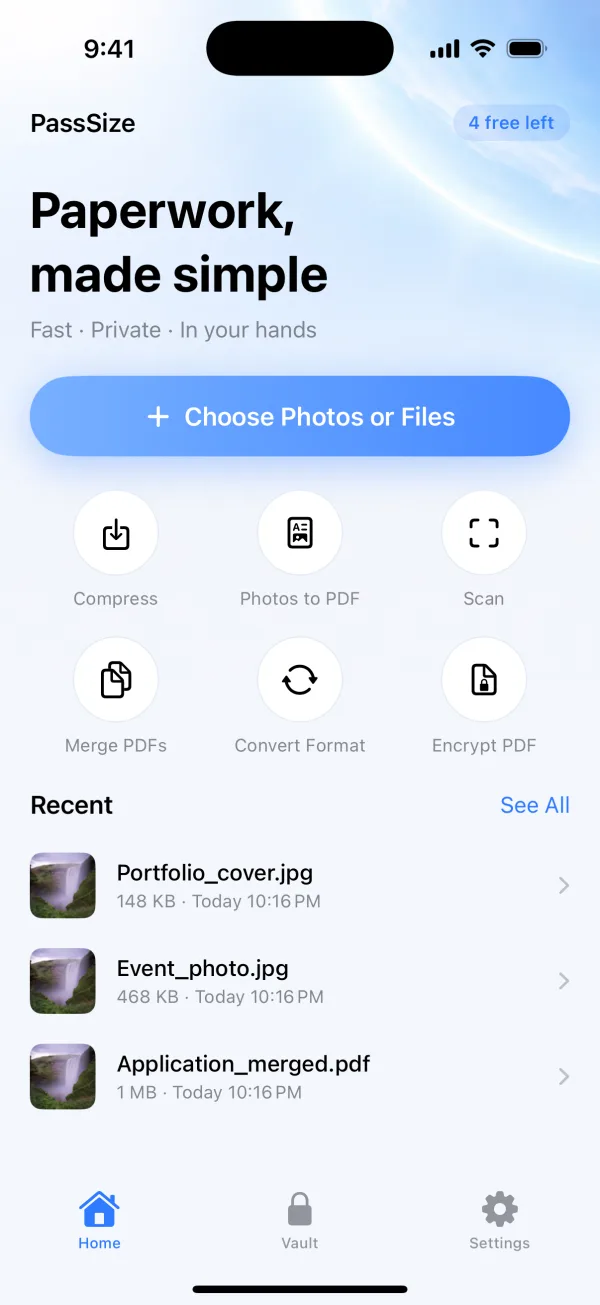
Crop to 3:4 in the Photos app first, then open PassSize and choose that photo from your library.
- 2
Limit the dimensions and set a size
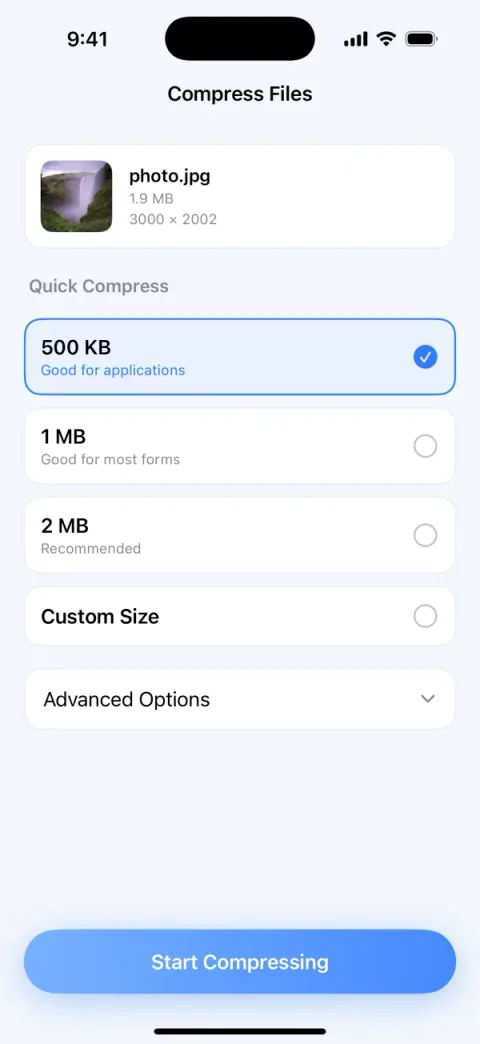
Enter the dimensions the website requires in the width and height limit, for example 600×800. If the site also limits file size, choose 500KB or enter a custom size too.
- 3
Check the dimensions, then save
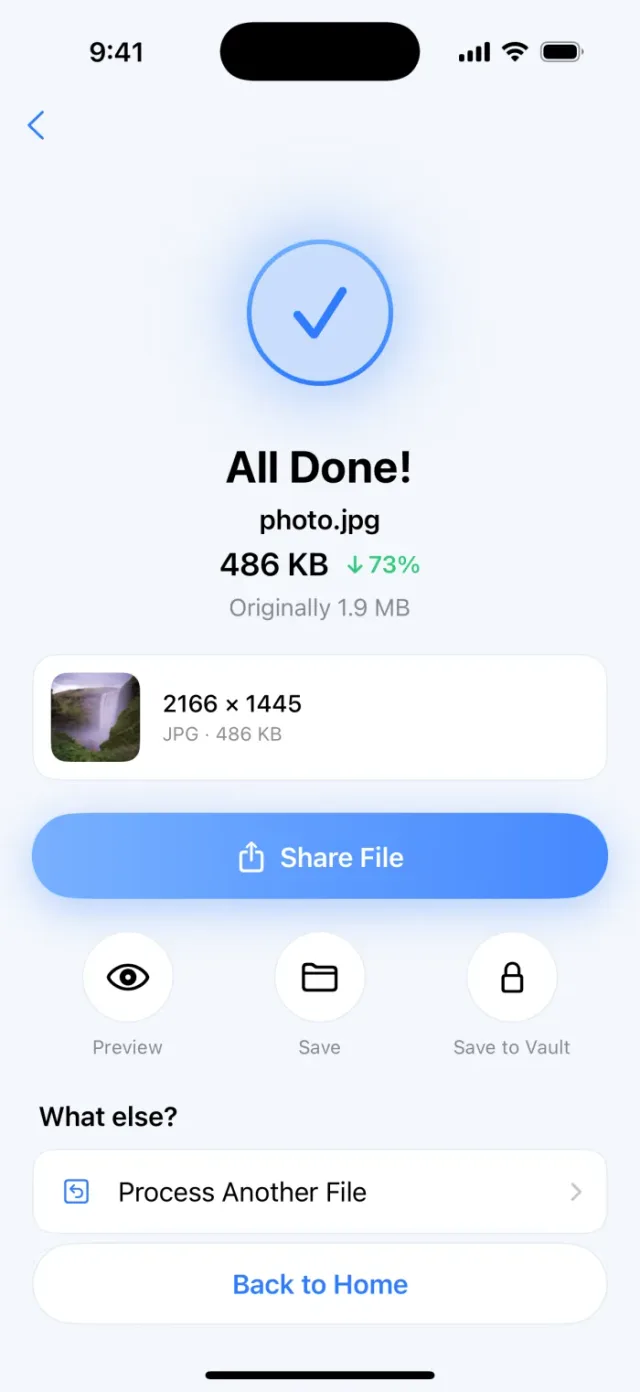
When it finishes, check that the dimensions and size shown in the result match the requirements, then save to your library or share directly.
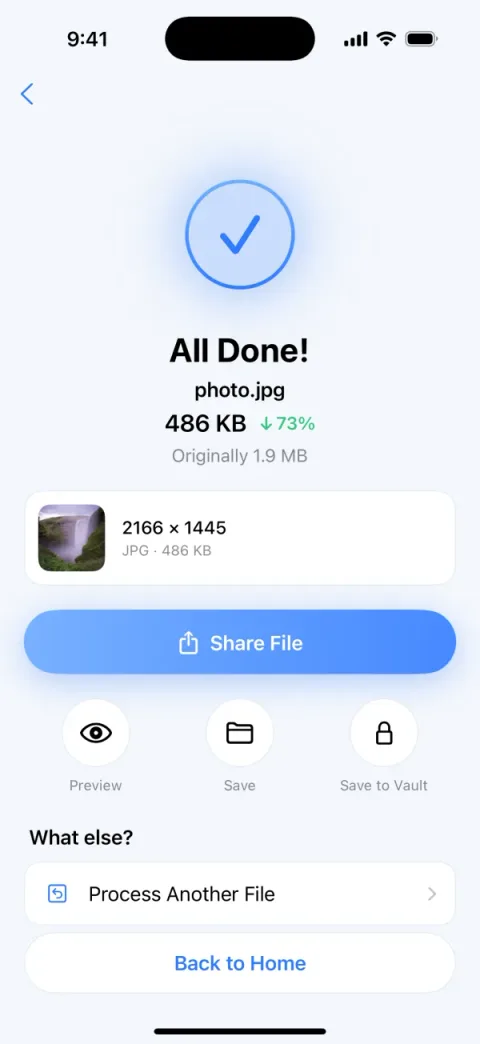
Screens are examples; actual file sizes vary by photo.
Disclosure: PassSize is an app developed by this site's author (Charonyu). The built-in methods and other options described here all work without downloading our app.
FAQ
What ratio is 600×800?
Dividing both 600 and 800 by 200 gives 3:4, a portrait photo. It is 3 wide by 4 tall, the same ratio as a portrait photo taken on iPhone.
What happens if I just resize a photo with the wrong ratio to 600×800?
If you scale it in a way that forces a non-proportional resize, the image is stretched or squashed and faces look wider or thinner. Proportional scaling doesn't distort, so crop to the same ratio first and then scale.
Can I enlarge a very small photo to 600×800?
Technically yes, but enlarging doesn't add detail and the result looks blurrier. Crop from the original photo when you can, and retake the photo if there aren't enough pixels.
What ratio is a portrait photo taken on iPhone?
The default is 4:3 (3:4 in portrait), so for a 3:4 spec such as 600×800 you usually only need to adjust the framing, without cropping much.