 Charonyu
How to remove location data from a photo before sending it
On iPhone, tap Options in the share sheet and turn off Location so the file you send carries no shooting location. You can also set a photo to "No Location" in Photos (reversible) or stop the camera from recording location at all.
 Charonyu・Guide・

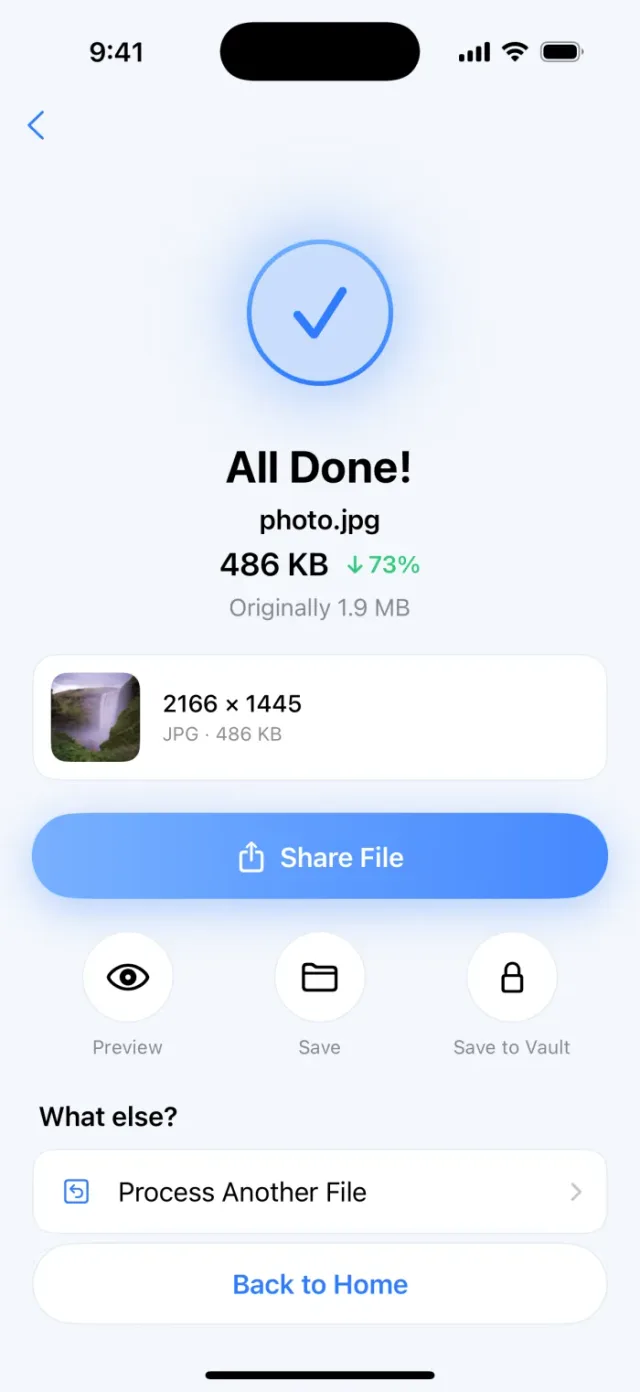
PassSize, mentioned in this guide, is currently in review · coming soon and can't be downloaded yet. Until it launches, you can use the built-in methods described here; this spot will turn into a download link once it is live.
Quick answer
When the Camera app has location permission, an iPhone records the shooting location (GPS coordinates) inside the photo, and the person you send it to may be able to see it. The easiest fix: in the Photos app tap Share, then Options at the top, turn off Location, and share. The file you send this time will carry no location. You can also set a photo in your library to “No Location” (Adjust Info, then Adjust Location, then No Location), but that edits your library data, and you can revert it later. After sending, open the copy that was received and check Info; no map means no location. For photos you are submitting, keep “Keep photo info (Exif)” turned off when compressing in PassSize, and the output file will not carry shooting time or location.
Where does the location in a photo come from?
Besides the picture itself, a photo file carries a block of EXIF data (Apple calls it metadata). Common contents:
- Shooting date and time
- Phone model, lens, aperture, shutter speed, ISO
- GPS location (when the Camera app has location permission)
Apple notes that when you share a photo that includes location metadata, the recipient may be able to get that data and learn where it was taken. A photo taken at home can reveal your address, so remove it before sending to strangers, uploading online, or submitting a document. Keep three things apart: the copy you send when sharing, the photo data in your library, and any separately exported or saved copy. Each method below only handles one of them.
First, check whether a photo has a location
- Open the Photos app and tap the photo.
- Swipe up, or tap the Info button (ⓘ).
- If a map or place name appears, the photo carries a location.
Method 1: Turn off Location when sharing (most common)
- In the Photos app, open a photo, or tap Select to pick several.
- Tap the Share button.
- Tap Options at the top of the share sheet.
- Turn off Location, then tap Done.
- Choose Messages, Mail, or another app to send it.
This only affects the file sent this time. The original in your library stays unchanged, and you need to turn it off again next time you share. The items under Options change with iOS version, so go by the switches you actually see on your phone. If there is an option such as “All Photos Data” that sends the full data along, keep it off when sending to other people.
Method 2: Set the photo’s location to “No Location”
To make sure a particular library photo carries no location in future shares:
- In the Photos app, open the photo and tap the More button (⋯).
- Tap Adjust Info, then Adjust Location, then No Location.
For several photos, tap Select first and pick them all, then adjust. Note that this edits the photo info in your library, it is not an irreversible erase: in the photo info, tap Adjust, then Revert, to restore the original location. If iCloud Photos is on, the change syncs to your other devices. Copies you already exported, saved to Files, or sent out are not changed.
How do you confirm the sent file has no location?
Whichever method you use, it is worth checking the copy the recipient actually gets:
- Send the photo to yourself the same way, for example to another device, a chat with yourself, or email.
- Save the received photo, open it in the Photos app, and swipe up or tap Info (ⓘ).
- If there is no map and no place name, the iPhone cannot read a location from that file, which works as a first check. For a stricter check, use a tool that shows full EXIF and look for a GPS field. A copy saved in the Files app can be opened and checked the same way.
Removing the location only handles GPS. Shooting time, device model, and other data are not necessarily removed with it.
Method 3: Stop the camera from recording location at the source
Go to Settings, then Privacy & Security, then Location Services, then Camera, and choose Never. Photos you take afterward will carry no GPS location. The trade-off: the Places view in Photos and searching by location will not work for new photos.
Comparing the methods
| Method | What it affects | Does the original change? | Best for |
|---|---|---|---|
| Turn off Location when sharing | The file sent this time | No | Occasionally sending to someone |
| Set to “No Location” | That photo in your library | Yes (reversible; copies already exported are not affected) | Specific photos you will share later without location |
| Camera location set to Never | Photos taken from now on | Old photos are not affected | Never wanting location recorded |
| PassSize with “Keep photo info” off | The compressed output file | No | Submitting or uploading, handled while compressing |
Handle it while compressing with PassSize
Photos for submission usually need compressing or converting to JPG anyway, and PassSize can do it all in one go:
- Under Advanced options in the compression settings there is a “Keep photo info (Exif)” switch, off by default. When it is off, the output file carries no shooting time, location, or similar data.
- At the same time you can compress a photo to 500KB, 1MB, 2MB, or a custom size, limit the width and height, and convert HEIC to JPG.
- Compression runs on your iPhone, and you can check the output with the methods above.
If you usually use online tools, read Are online image compressors safe? first.
A note: a screenshot itself contains no GPS location, but its content may show an address, a door number, or a map. Removing EXIF only handles the data inside the file. Anything visible in the image you need to check yourself or blur out.
Continue with the complete guide: The complete guide to compressing photos and PDFs on iPhone →
Steps
- 1
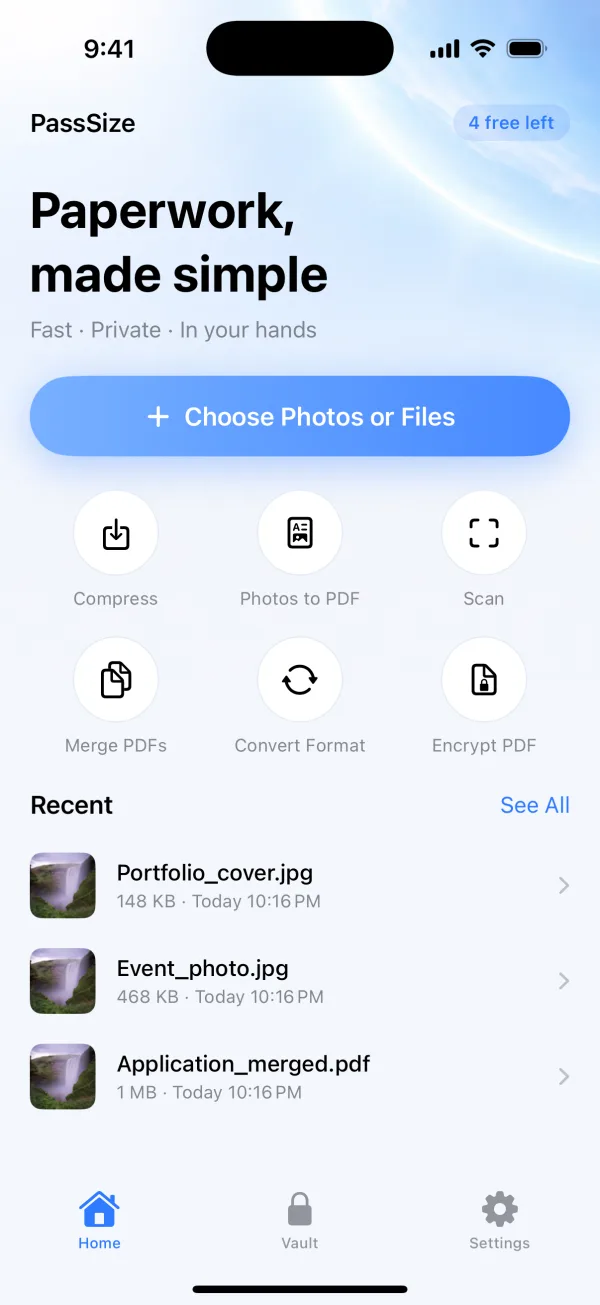
Import the photos you want to send
Open PassSize and pick photos from your library or the Files app. You can select several at once.
- 2
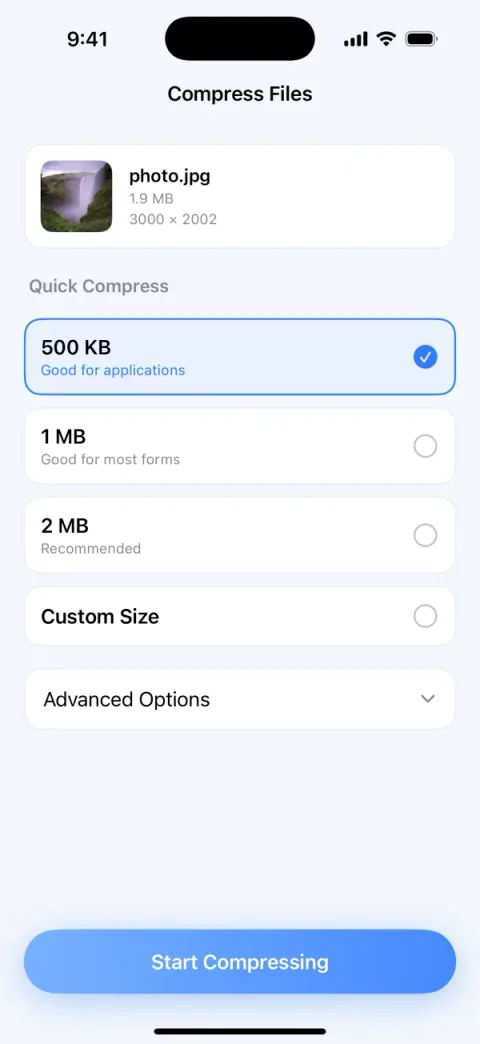
Check the photo info setting under Advanced options
After choosing a target size, expand Advanced options and make sure "Keep photo info (Exif)" is off (it is off by default). The output file then carries no shooting time or location.
- 3
Save or share directly
When it is done, save to your library or share straight to wherever you are uploading or sending it.
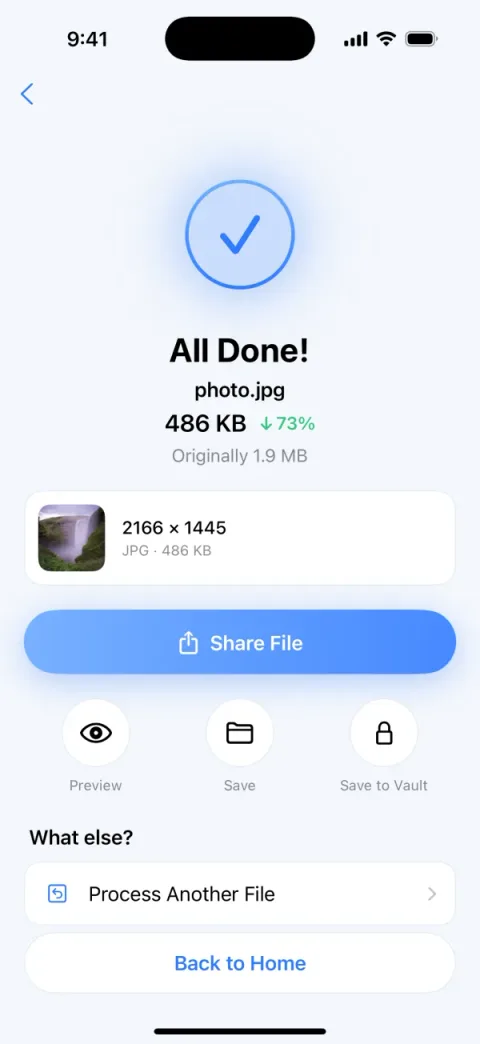
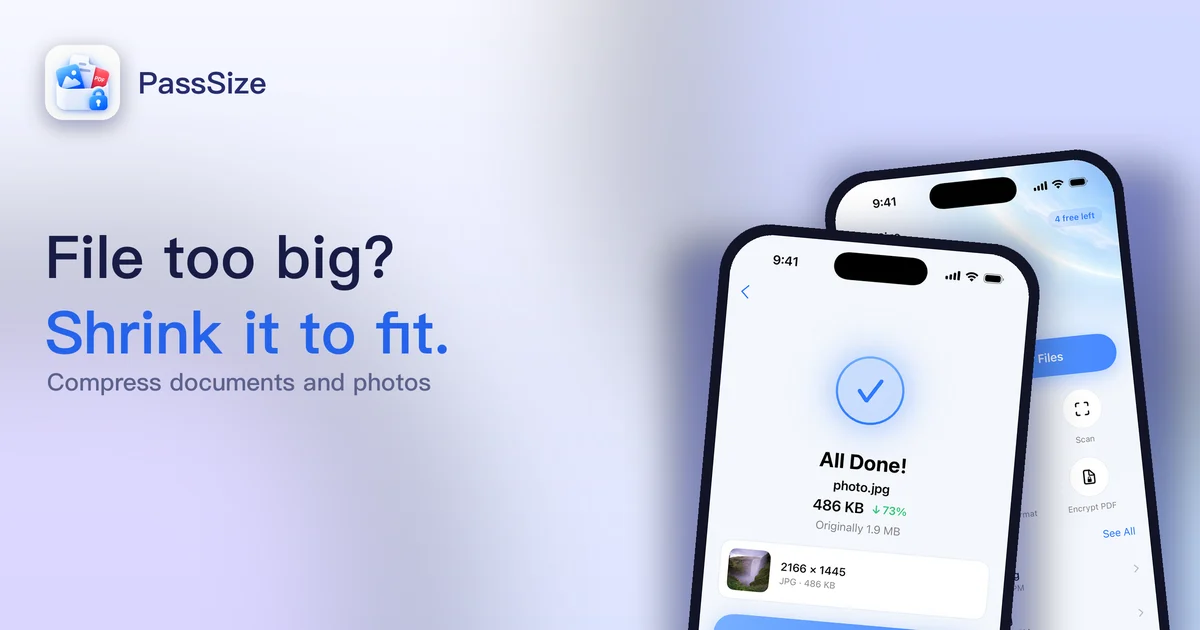
Screens are examples; actual file sizes vary by photo.
Disclosure: PassSize is an app developed by this site's author (Charonyu). The built-in methods and other options described here all work without downloading our app.
FAQ
Do photos sent through LINE or Messenger include my location?
Each app handles this differently and it can change between versions, so there is no single answer. The safest approach is to remove the location yourself before sending, for example by turning off Location in the iPhone share sheet.
After I turn off Location, does the original in my library still have a location?
Yes. Turning off Location in the share sheet only affects the file you send this time. The original in your library is unchanged and still shows up on the map.
Can I undo "No Location" on a photo?
Yes. "No Location" edits the photo's info in your library, it does not erase it permanently. Open the photo's info, tap Adjust, then choose Revert to restore the original location.
How can I confirm the photo I sent really has no location?
Send the photo to yourself (to another device or a chat with yourself), then open the received copy and tap Info or swipe up. If there is no map and no place name, the iPhone cannot read a location from it, which works as a first check. For sensitive files, you can also use a tool that shows full metadata (EXIF) to confirm there is no GPS field.
What is EXIF, and what else does it contain besides location?
EXIF is the shooting data attached to a photo. Common fields include date and time, phone model, lens, aperture and shutter speed, and GPS location. None of it is needed when you submit a photo to a form or application, so it is generally best not to keep it.