 Charonyu
Is it safe to upload ID photos to online compression sites?
Online compressors upload your file to their servers. How long it is kept and whether it is analyzed depends on each site's policy. Fine for ordinary photos, but for IDs and contracts check the privacy policy first or use a tool that works on your phone.
 Charonyu・Article・

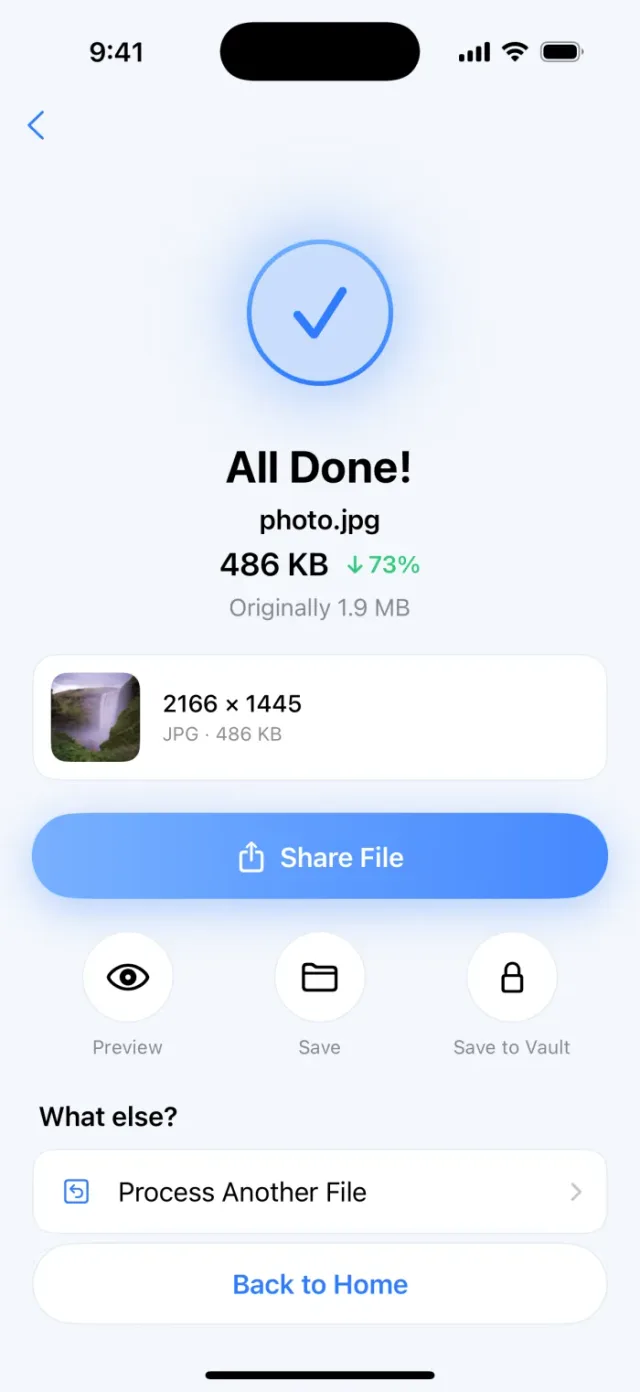
PassSize, mentioned in this guide, is currently in review · coming soon and can't be downloaded yet. Until it launches, you can use the built-in methods described here; this spot will turn into a download link once it is live.
Quick answer
When you upload an ID photo to an online compression site, the file leaves your phone and goes to the site’s server for processing. Most sites say how long after processing they delete it, but retention periods, ads and tracking tools differ from site to site, and the privacy policy is the only way to judge. For ordinary everyday photos it matters little. For ID cards, passports, contracts and transcripts, it is better to use iPhone’s built-in tools or an app that works on your phone (such as PassSize), so fewer third-party compression services handle the file. When you finally upload it, the file still goes to the receiving website.
What happens when you upload to an online compressor?
For a typical online compression site, the flow looks like this:
- You choose a file on the page, and it is uploaded over the network to their server.
- The server compresses it and produces a new file.
- You download the compressed version.
- The original and compressed files stay on the server for a while and are then deleted (depending on each site’s policy).
This doesn’t mean the site is malicious. Most of these are legitimate tools. But during that time your file really does sit on someone else’s computer, and you have to trust what they say about how they handle it.
What should you watch out for?
- Retention varies: some sites say files are deleted soon after processing, some keep them longer, and some don’t say clearly.
- Where files are stored: the server may be in another country, with laws different from where you live.
- Ads and tracking tools: free sites often run on ads and may include third-party trackers. These usually track browsing behavior rather than your files, but it means more data is collected.
- Accounts and history: some services require a login, and your files may be kept in your account history.
- Extra information in photos: a photo may carry location and time data that is sent along with it. See how to remove location info before sending photos.
Which files need extra care?
| File type | Examples | Recommendation |
|---|---|---|
| Ordinary photos | Landscapes, event photos, portfolio work | Online tools are usually fine |
| Personal photos | Profile pictures, everyday photos | Read the privacy policy first |
| Identity documents | National ID card, health insurance card, passport, driver’s license | Process on your phone |
| Contracts and financial documents | Contracts, bank passbooks, pay slips, tax documents | Process on your phone |
| Education and work records | Transcripts, diplomas, resumes | Process on your phone |
The problem with IDs and contracts is that once they leak, the name, ID number, address and signature on them are hard to take back, so one extra check is worth it.
How to check an online tool
Spend a minute on these before using one:
- Privacy policy: does it say how long files are kept, when they are deleted, and whether they are used for anything else?
- Where processing happens: does it say “processed in your browser/on your device, not uploaded”? A few web tools do process inside the browser, but only count it if it is stated clearly.
- Operator information: is there a company name and contact information?
- Login required?: tools that need no account are less likely to leave a history.
- Correct URL: make sure it is an https connection, and don’t arrive through ads from unknown sources.
A safer approach: process it on your phone
Compressing on your phone means one less third-party server handles your file, which removes the retention and server-location concerns above. When you finally submit it, though, the file is still uploaded to the receiving site or person. The iPhone itself has several on-device options:
- Crop the photo: edit in the Photos app > Crop, which reduces pixels and makes the file smaller.
- Export from the Preview app (from iOS 26): you can adjust the file size when exporting.
- Scan documents with Files or Notes: scan paper straight into a PDF. Scanning happens on the phone, but if you save to iCloud Drive or use iCloud Notes, the file syncs to iCloud.
- Shortcuts: build your own resize-and-convert-to-JPEG flow. See How to batch-resize photos with iPhone Shortcuts.
Emailing the photo to yourself and choosing a smaller size also shrinks it, but the photo passes through a mail server, so it doesn’t count as on-device processing.
The downside of the built-in methods is that you can’t set a target like “exactly 2MB”, so it often takes several tries. For a full comparison, see Where is the best place to compress images?
PassSize: files stay on your phone and still hit the target size
PassSize is an app built for submitting files, and how it handles them is written in its privacy policy:
- Processed on your phone: compressing, converting and combining PDFs all happen on the iPhone, and files are not sent to the developer’s servers.
- No account needed, no ads, no tracking.
- Compress to a set size: 500KB, 1MB, 2MB or custom, for both photos and PDFs.
- Private vault: store IDs and contracts in the vault, which opens only with Face ID or a passcode.
- When you share from the Photos app to PassSize, the file is likewise processed only on your phone.
A quick reminder: whichever tool you use, when you finally send or upload the file it goes to the receiving site or person. Making sure you are on the correct official website matters more than which compression tool you chose.
Continue with the complete guide: The complete guide to compressing photos and PDFs on iPhone →
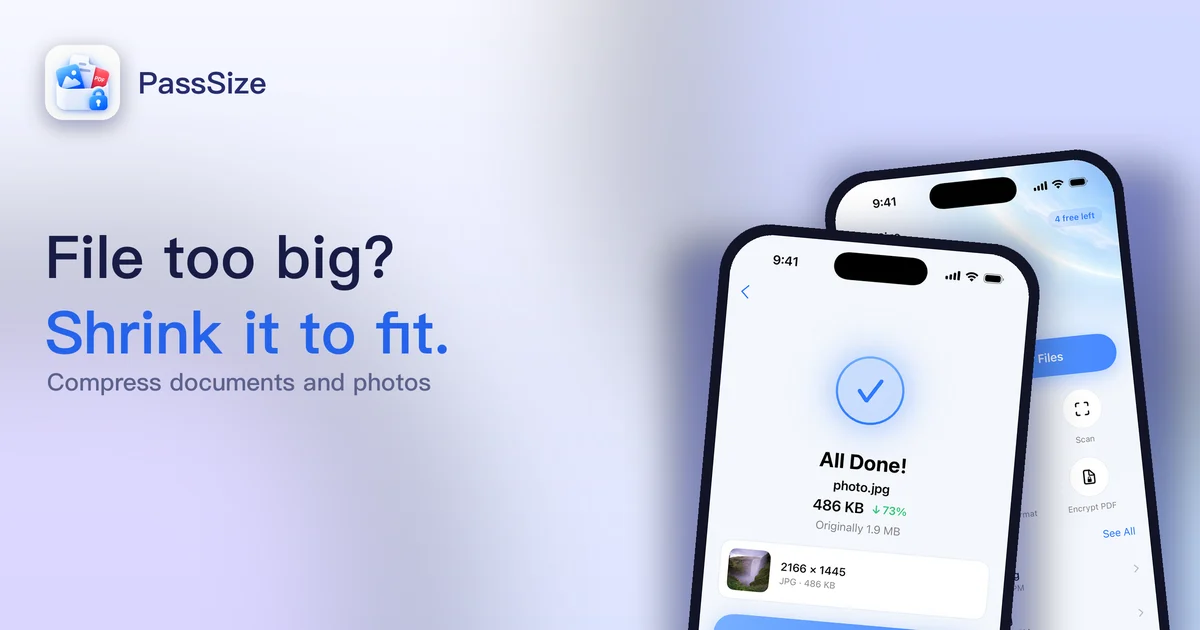
Disclosure: PassSize is an app developed by this site's author (Charonyu). The built-in methods and other options described here all work without downloading our app.
FAQ
Do online compression sites always keep my files?
Not always. Many state in their privacy policy how long after processing they delete files, but practices differ, so reading the policy before you use one is the most reliable check.
If a site says it deletes files automatically after processing, is it safe?
It means they promise not to keep files long term, so the risk is lower. But the file still leaves your phone and passes through their server. That is usually fine for ordinary photos; for IDs and contracts, processing on your device is still the better choice.
How can I tell whether a tool works on my phone?
Look for explicit wording like "processed on device" or "files are not uploaded" in its official description or privacy policy. Most web tools need to upload files; a few process them inside the browser, but you can only be sure from what they say.
I already uploaded my ID to an online site. What should I do?
No need to panic. Check the site's privacy policy for how long files are kept and how they are deleted, and delete the file yourself if the site offers that. From now on, process sensitive documents on your phone.