 Charonyu
How to compress a large PDF on your phone
PDFs are usually large because of the photos or scanned pages inside. iPhone's Preview app (iOS 26 and later) can shrink a file when exporting but can't hit a target size. To get under a hard limit like 2MB or 5MB, use PassSize to compress to an exact size on your phone.
 Charonyu・Guide・

PassSize, mentioned in this guide, is currently in review · coming soon and can't be downloaded yet. Until it launches, you can use the built-in methods described here; this spot will turn into a download link once it is live.
Quick answer
A PDF is usually large because of the photos or scanned pages inside it. iPhone has no built-in “compress a PDF to a set size” feature. The Preview app (iOS 26 and later) can shrink a file when you export it, but only roughly, and you can’t ask for 2MB. To be sure you hit the size a website requires, use PassSize: import the PDF > choose 2MB or a custom size > save. Everything is processed on your phone.
Why are PDFs so big?
A PDF is just a “container”, and its size depends on what’s inside:
- Photos: a single iPhone photo is often several MB, so a PDF made from photos can pass 20MB at ten pages.
- Scanned pages: a scanned document is really a series of images, and the higher the resolution, the larger the file.
- Plain text: text is very compact. A text-only PDF of dozens of pages is often only a few hundred KB.
So making a PDF smaller almost always means making the images inside smaller.
Method 1: export from Preview (built in, iOS 26 and later)
Since iOS 26, iPhone includes the Preview app, which Apple says can compress a file when you export it:
- Open the PDF in Preview.
- Tap the menu button next to the file name > Export.
- Choose a format and adjust the size using the options on screen.
- Save a copy, then check the new file’s size in the Files app.
In Apple’s newer user guide, PDF export also lists options such as “Optimize for screen images” (lowers image resolution) and “Save images as JPEG”. Which options you see depends on your iOS version.
- Pros: built in, free, nothing is uploaded.
- Cons: you can’t set a target size, so you won’t know if it will meet the limit and often have to try several times.
Method 2: use an online PDF compression site
Searching “compress PDF” turns up many sites where you upload a file and download a smaller version.
- Pros: works on a computer or phone, and some let you choose how strong the compression is.
- Cons: the file is uploaded to their server, and how long it’s kept and how it’s handled depends on each site’s policy. There are often file size limits, usage limits or ads. Be especially careful with ID documents and contracts. See Is it safe to upload an ID photo to an online compression site?
Method 3: make the PDF smaller at the source
If you made the PDF yourself from photos, the best approach is to shrink the photos first and then combine them:
- Compress each photo to a few hundred KB, then combine into a PDF.
- When scanning, you don’t need the highest resolution. Clear enough to read is fine.
For how to combine photos into a PDF, see How do I combine multiple photos into one PDF on iPhone?
Method 4: compress to a set size with PassSize
PassSize can compress a PDF straight to 500KB, 1MB, 2MB or a custom size:
- When you combine photos into a PDF, the photos go into the PDF as JPEG, which makes the size easier to predict.
- If the PDF is still over the target, the app converts the pages to images and compresses them, getting as close under the target as it can. If the target is set too low, text can become hard to read or it may not reach the target at all. The app tells you how many files are still over and suggests reducing the dimensions or changing the target.
- It can also merge, reorder, rotate, delete pages and split into single pages. Deleting pages you don’t need is another good way to shrink a file.
- Everything is processed on your phone and the file isn’t uploaded.
The trade-off to know: once pages are converted to images, the text becomes part of the picture and can no longer be selected or searched, and you can’t expect form fields or digital signatures to be kept. That’s usually fine when the submission only needs to be readable. If the recipient needs copyable or searchable text, or the document has signatures or fillable fields, try deleting extra pages first and keep a copy of the original.
Comparing the methods
| Method | Can set a size | Uploads the file | Text selectable | Cost |
|---|---|---|---|---|
| Preview export (iOS 26 and later) | No | No | Depends on options | Free |
| Online compression sites | Some let you pick strength | Yes | Depends on the site | Mostly free with limits |
| Compress photos first, then combine | Indirect control | No | N/A | Free |
| PassSize | Yes | No | Not after pages become images | 5 free uses, then NT$60 one-time purchase |
Tip: a website’s “5MB” might mean 5,000 KB or 5,120 KB, so leave some headroom when compressing. After compressing, flip through every page to make sure the small print is still readable. For the difference between the two ways of counting, see this explanation of MB and KB conversion.
Continue with the complete guide: The complete guide to compressing photos and PDFs on iPhone →
Steps
- 1
Import the PDF
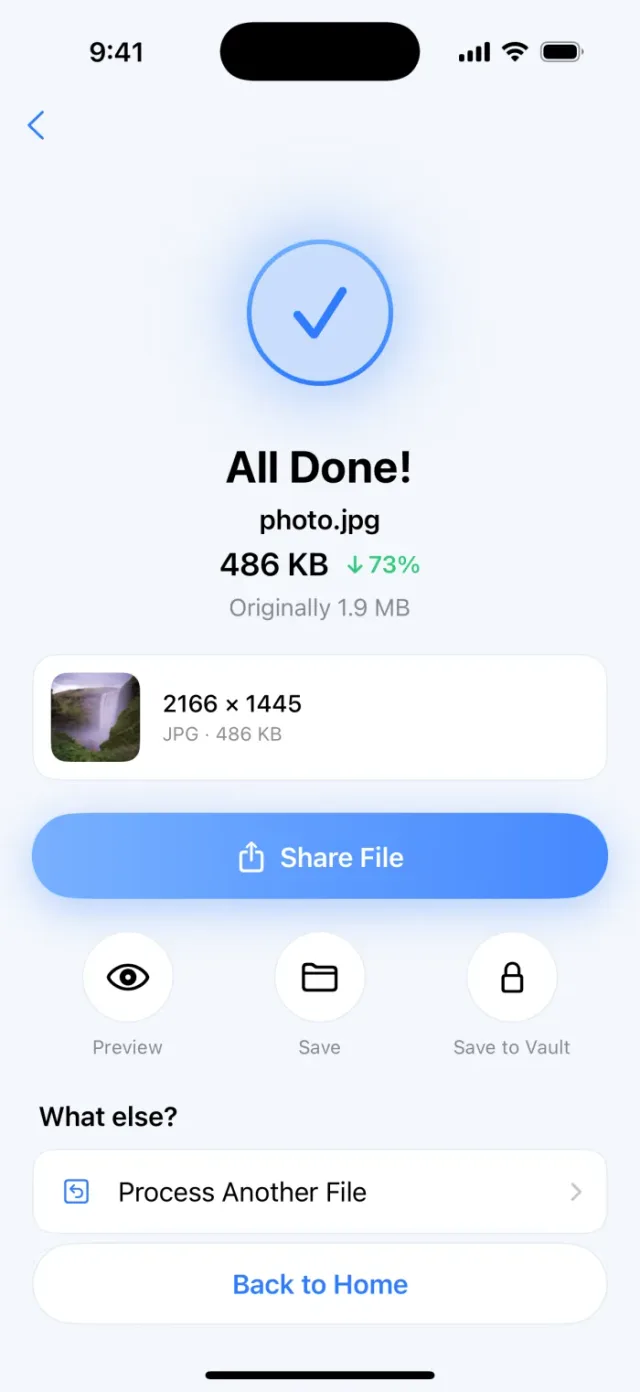
Open PassSize, tap "Choose photos or files" > Files app, and select the PDF to compress.
- 2
Set a target size
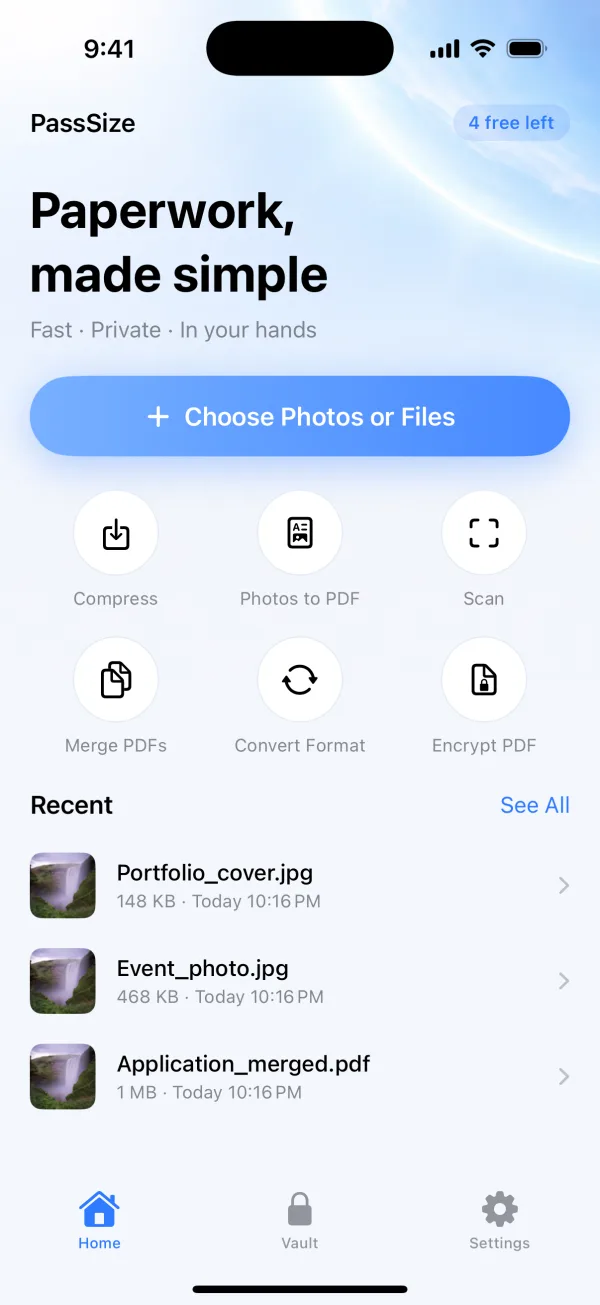
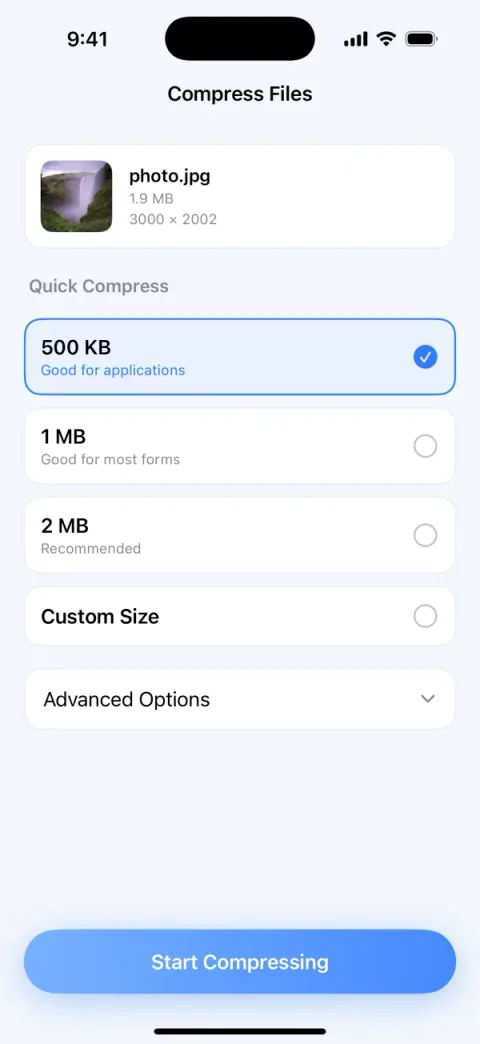
Choose 500KB, 1MB or 2MB, or tap Custom size and enter the limit the website sets.
- 3
Check the result and save
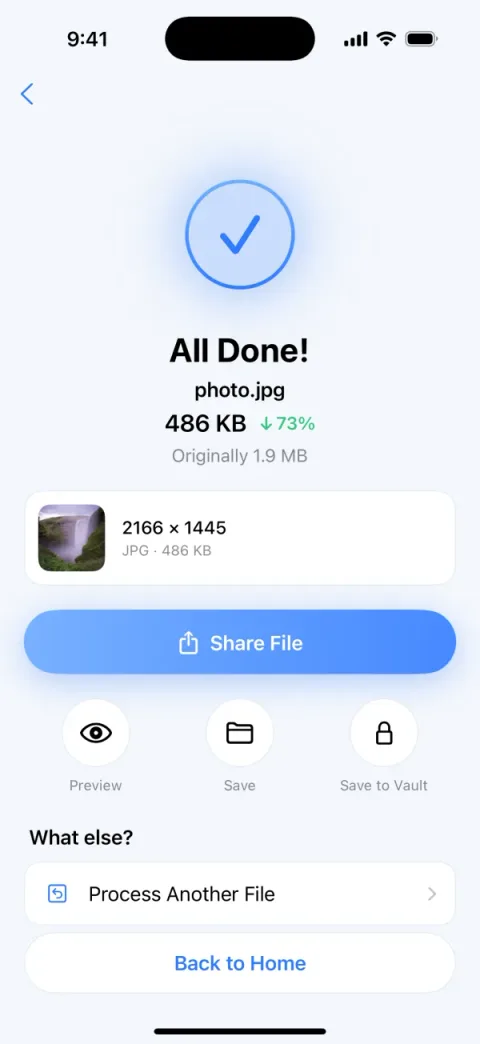
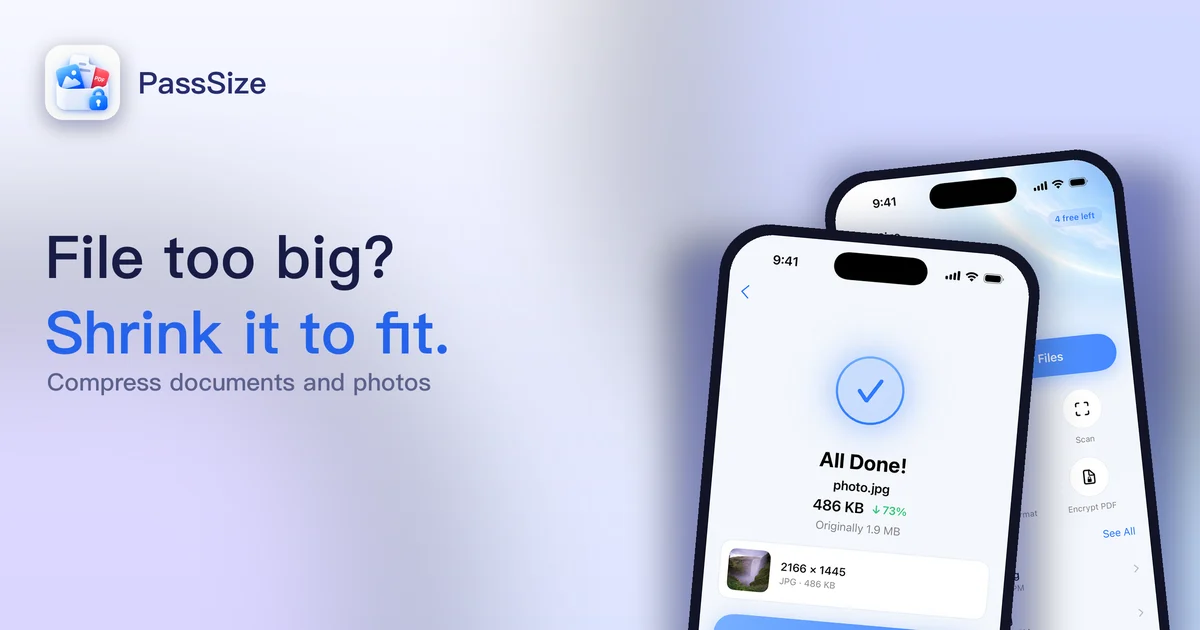
When it finishes, it shows the size before and after. Open it to make sure the content is clear, then save to Files or share it directly.
Screens are examples; actual file sizes vary by photo.
Disclosure: PassSize is an app developed by this site's author (Charonyu). The built-in methods and other options described here all work without downloading our app.
FAQ
Does long-pressing a PDF in the Files app and choosing Compress make it smaller?
That Compress option packs the file into a ZIP archive. The recipient has to unzip it before seeing the PDF, and most sites that take PDF uploads don't accept ZIP files, so it can't replace PDF compression.
Why can't a text-only PDF be compressed much?
Text takes very little space, so large files are usually photos and scanned pages. If a mostly-text PDF is still large, it may contain many embedded fonts or images, and there is little room to shrink it.
Can I still select and search the text after compression?
It depends on the method. If only the images inside the PDF are shrunk, the text stays selectable. If each page is converted to an image and then compressed, the text becomes part of the picture and can't be selected or searched. How clear it looks depends on how hard it was compressed, so zoom in and check afterwards.
Can I use online PDF compression sites?
Yes, but your file is uploaded to their server for processing. For contracts, ID documents and transcripts, read the site's privacy policy first or use a method that works on your phone.