 Charonyu
How to scan a paper document into a PDF on iPhone
Both the built-in Notes and Files apps have Scan Documents. Point at the document, adjust the area and tap Keep Scan to save it as a PDF. To merge other files or compress to a set size, scan and process directly in PassSize.
 Charonyu・Guide・

PassSize, mentioned in this guide, is currently in review · coming soon and can't be downloaded yet. Until it launches, you can use the built-in methods described here; this spot will turn into a download link once it is live.
Quick answer
iPhone can scan documents without downloading another app. Open the “Files” app > tap ”…” > “Scan Documents”, point at the paper, drag the corners to adjust the area, tap “Keep Scan” > “Save”, choose a location, and you have a PDF. You can also do it in “Notes”: tap the attachment button > Scan Documents. If you also need to merge it with other files or compress it to under 2MB, scan and process directly in PassSize.
Method 1: Scan in the Files app (built in, saves straight to PDF)
- Open the Files app and tap the ”…” (More) button at the top right.
- Tap “Scan Documents”.
- Place the document in the camera view. In Auto mode it captures automatically. You can also tap the shutter button, or press either volume button to capture manually.
- Drag the four corners so the frame fits the paper, then tap “Keep Scan”.
- For more pages, keep scanning the next one. When all are done, tap Save.
- Choose where to save and tap Save.
On iOS 26 the scanning screen also offers options like the flash and image filters.
- Pros: once scanned it’s already a PDF, saved right in Files, which is best when you need to upload it.
- Note: files saved to iCloud Drive sync to iCloud. If you don’t want ID-type documents in the cloud, choose On My iPhone.
Method 2: Scan in Notes
- Open Notes and create or choose a note.
- Tap the attachment button > “Scan Documents”.
- Again, point at the document, adjust the area, tap Keep Scan, and finally tap Save.
The scan is kept inside the note. To turn it into a PDF file, open the scanned document > Share > Save to Files.
- Pros: you can also add a signature right in Notes using Markup.
- Cons: one extra step of saving to Files, and if Notes uses an iCloud account, the scan also syncs to iCloud.
How do I get a clean, clear scan?
- Dark background: put white paper on a dark desk and its edges are easier to detect.
- Even lighting: avoid your phone’s own shadow, and when the light is low, try the flash option on the scanning screen.
- Phone parallel to the paper: shoot from directly above for the least distortion.
- All four corners in the frame: a missing corner on an ID or form can easily get it rejected.
- Pick the right filter: for ordinary text documents, black and white or grayscale is usually clearest. Keep color for documents with colored stamps or photos.
- Zoom in to check after scanning: small text, signatures and dates all need to be readable.
Comparing the methods
| Method | Straight to PDF | Merge other files | Set file size | Cost |
|---|---|---|---|---|
| Scan Documents in Files | Yes | No | No | Free |
| Scan Documents in Notes | Needs Save to Files | No | No | Free |
| PassSize scanning | Yes | Yes | Yes | 5 free uses, then a one-time NT$60 purchase |
Scan and organize in one place with PassSize
When you submit documents, it’s often more than one sheet: you may need to put both sides of an ID, an application form and a photo into one PDF, and keep it under 2MB. PassSize can do it all in one app:
- Scan documents: turn paper documents into clear PDFs.
- Merge PDFs: scans can be combined with photos and other PDFs into one file, with drag-to-reorder.
- Organize pages: rotate, delete pages, split into single pages.
- Compress to a set size: 500KB, 1MB, 2MB or custom.
- Private vault: keep IDs and contracts in the vault, which opens only with Face ID or a passcode.
- Scanning, merging and compressing all happen on your phone, with nothing sent to the developer’s server.
If you only need to turn photos into a PDF, see “How to combine multiple photos into one PDF on iPhone”.
A heads-up: every scanned page is an image, so the file grows with more pages. Check the size before uploading, and if it goes over the limit see “How to compress a PDF that’s too large on iPhone”.
Continue with the complete guide: The complete guide to compressing photos and PDFs on iPhone →
Steps
- 1
Choose "Scan Documents"
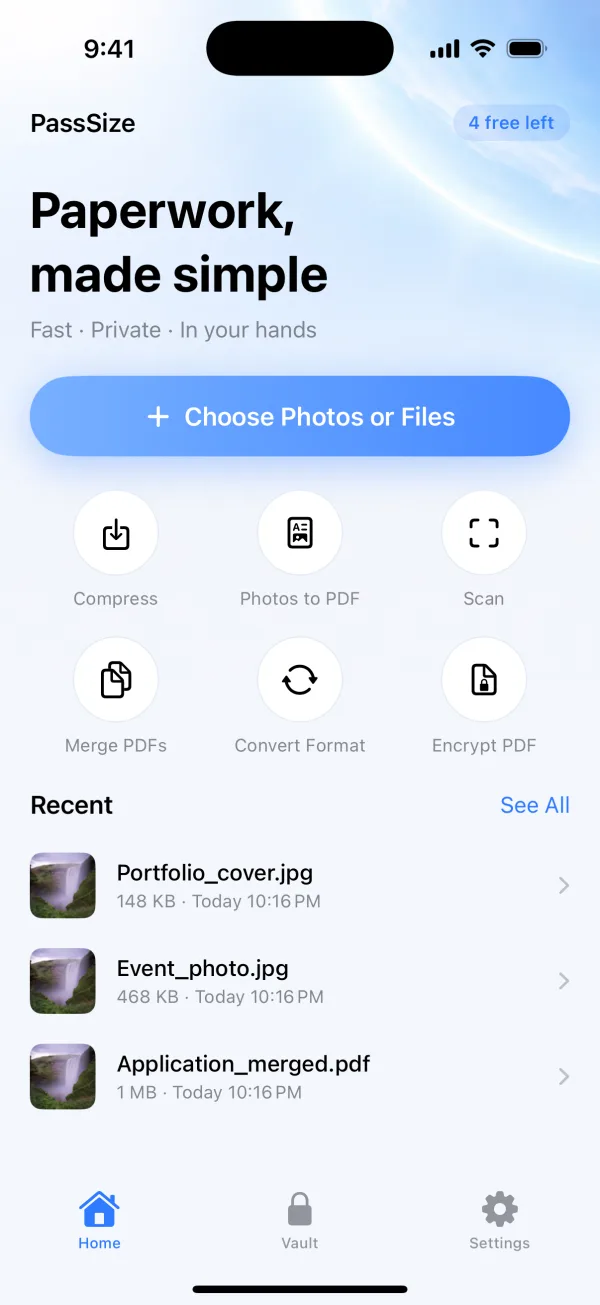
Open PassSize and tap "Scan", or tap "Choose photos or files" > "Scan Documents".
- 2
Scan each page
Place the document in the camera view, scan page by page and check the area. When you're done, it becomes one PDF.
- 3
Merge or compress, then send
If needed, merge with other photos and PDFs and adjust the order, then compress to the size the website requires, and save or share.
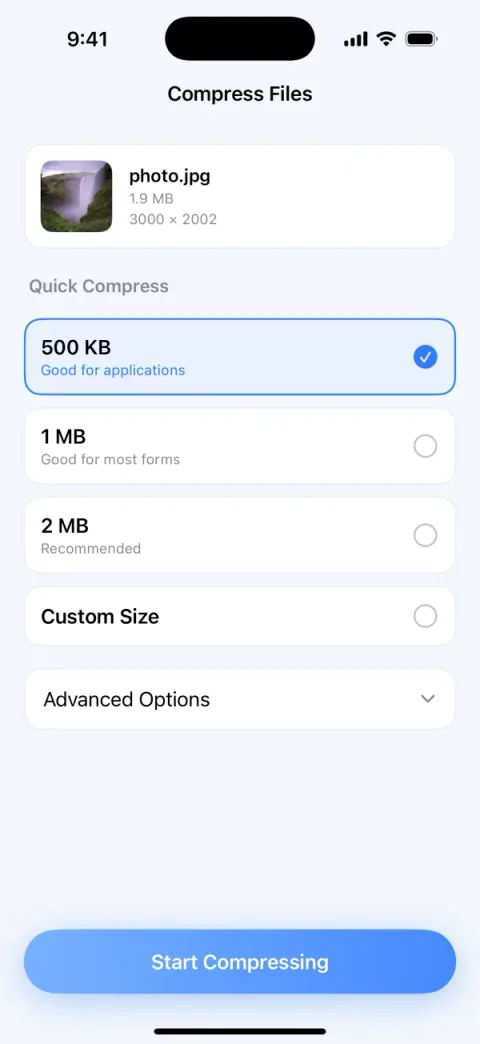
Screens are examples; actual file sizes vary by photo.
Disclosure: PassSize is an app developed by this site's author (Charonyu). The built-in methods and other options described here all work without downloading our app.
FAQ
How do I turn a document scanned in Notes into a PDF file?
Open the scanned document in Notes, tap Share, and choose Save to Files to save it as a PDF. You can also share it directly with someone.
What's the difference between scanning and just taking a photo?
Scanning automatically detects the paper's edges, straightens a skewed angle and crops out the desk background, so the result looks more like a photocopy and is a PDF right away.
What if the scanned PDF is too big?
Each scanned page is an image, so it grows quickly with more pages. You can delete pages you don't need, or compress the PDF to a set size.
Is it OK to scan documents like an ID card or a contract with my phone?
Yes, the scanning itself happens on your phone. But if you save the scan to iCloud Drive, or iCloud sync is on for Notes, the file syncs to iCloud. If you don't want it in the cloud, save it to On My iPhone. After scanning, check that the text is clear and all four corners are included.