 Charonyu
How to turn travel photos into a memory video on iPhone
Put your trip photos in one album and play it as a Memory slideshow in the Photos app, then change the music, look, and length before sharing. iPhones with Apple Intelligence can also build one from a text description. For more editing room use iMovie Magic Movie; for a fixed 9:16 output use an app that lets you pick a ratio, such as the video templates in Picsy.
 Charonyu・Guide・

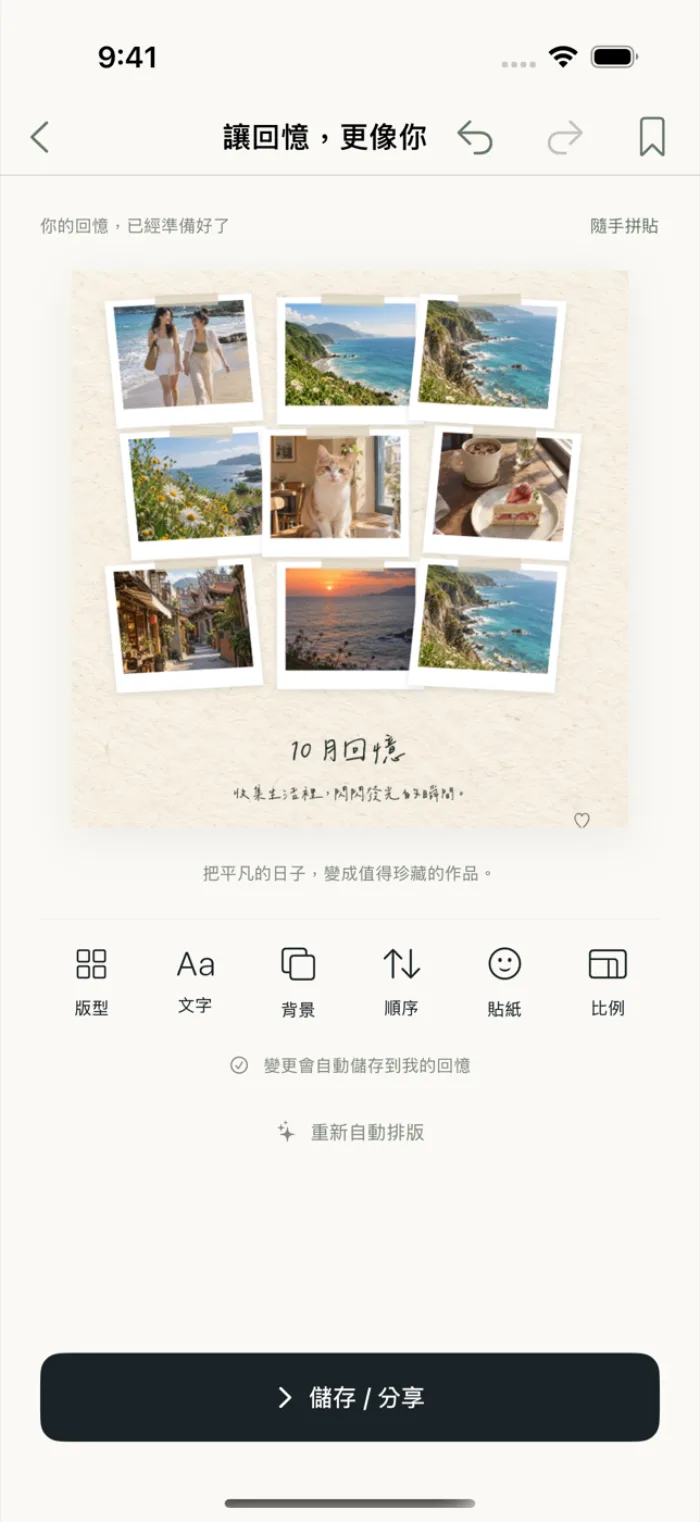
Picsy, mentioned in this guide, is currently coming soon and can't be downloaded yet. Until it launches, you can use the built-in methods described here; this spot will turn into a download link once it is live.
Quick answer
The simplest free way is the iPhone’s built-in Photos app: put the trip photos in one album, open the album under Albums, and play it as a Memory slideshow, then change the music, look, and length, and share it from the share sheet. An iPhone that supports Apple Intelligence can also create one under Memories by tapping Create and typing a description. For more editing room, use the free iMovie Magic Movie; to export a short video at a fixed ratio such as 9:16, use an app that lets you pick the output ratio, such as the video templates in Picsy.
Method 1: Memory slideshow in the Photos app (built in, free)
Make a trip memory from an album
- First add the photos and videos from the trip to a new album, for example “2026 Kyoto”.
- Open the Photos app, tap Albums, and select that album.
- Tap the play button and it plays as a Memory slideshow with music.
The system also builds Memories on its own; find them under Albums, then Memories, and there is often already one for a trip.
Create one with a description using Apple Intelligence
If your iPhone supports Apple Intelligence and it is turned on: tap Albums, then Memories, then Create, type what you want to see (for example “the beach in Okinawa last summer”), and tap Done. The system picks photos, arranges chapters, and adds music.
What you can adjust during playback
Tap the screen while it plays to bring up the menu. You can:
- Memory Mix: swipe left or right to switch the whole set of music and style.
- Look: apply a Memory filter to unify the color of all photos.
- Music: choose from Memory soundtracks or songs suggested by Apple Music.
- Length: choose Short, Medium, or Long.
- Manage Photos: add or remove photos, and touch and hold to drag them into a new order.
Sharing
While it plays, tap the menu at the top, then Share, to send via AirDrop, Messages, or Mail.
- Pros: completely free, built in, and picks photos and music for you.
- Cons: you cannot choose the output ratio, the layout is mostly slideshow playback, and there is not much you can adjust in fine layout or text style.
Method 2: iMovie Magic Movie (free)
Apple’s iMovie has a Magic Movie project: after you choose photos and videos, iMovie adds transitions and music automatically to make a video, and afterwards you can rearrange clips and change the style, music, text, and filters.
- Pros: more room to edit than Memories.
- Cons: you need to download another app, and the interface is closer to editing software, so the first time takes some figuring out.
According to Apple, Clips is no longer updated and has been removed from the App Store, so new users cannot download it, and we do not recommend it here.
Method 3: Make a memory video with Picsy templates
Picsy is an app made for turning photos into collages and memory videos, and suits people who do not want to edit a timeline and just want to pick photos and be done:
- Eight video memory templates: This Month’s Memories, Film Reel, Travel Vlog, Daily Life, and more, with motion, transitions, text, and built-in original music.
- Automatic layout and cropping: pick 1 to 30 photos or videos, apply a template, and it finishes automatically.
- Memories put together for you: this month, this day in past years, and trips are picked out on your phone automatically.
- Output ratio: export MP4 in 9:16, 4:5, or 1:1, ready for Stories and posts.
- No account needed; photos and your work are processed and stored on your device.
Comparing the methods
| Method | Picks photos automatically | Choose output ratio | Music | Cost |
|---|---|---|---|---|
| Photos Memories | Yes | No | Memory soundtracks, Apple Music | Free |
| iMovie Magic Movie | No, you choose | — | Built-in soundtrack | Free |
| Picsy | Yes (trips, this day in past years, etc.) | 9:16 / 4:5 / 1:1 | Built-in original music | Free templates and standard export are free; premium templates and high-quality export are paid |
To also turn photos from the same trip into a collage, see How to make a Polaroid-style photo collage. Before you start, clear out duplicates and failed shots so picking goes much faster; see How to quickly clean up too many photos on iPhone.
A note: when posting to Instagram, YouTube, and similar platforms, songs from Apple Music may be muted or restricted over copyright. The original music built into an app is usually less likely to hit this, but whether your use (for example commercial use) is allowed still depends on each app’s license terms.
Steps
- 1
Pick your travel photos and videos
Open Picsy and choose 1 to 30 photos or videos from your library. You can also start from the Travel memories the app has already put together for you.
- 2
Apply a video template
Choose a video memory template such as Travel Vlog. It lays out and crops automatically and adds transitions, text, and built-in original music, so you do not edit a timeline yourself.
- 3
Choose a ratio and export to share
Pick 9:16, 4:5, or 1:1 depending on where it is going, then export an MP4 to your library or share it directly.

Disclosure: Picsy is an app developed by this site's author (Charonyu). The built-in methods and other options described here all work without downloading our app.
FAQ
Can I choose the photos for an iPhone Memory myself?
Yes. While a Memory plays, tap the screen to bring up the menu, use Manage Photos to add or remove photos, and touch and hold a photo to drag it into a new order.
What do I need to make a Memory with Apple Intelligence?
An iPhone that supports Apple Intelligence with the feature turned on; not every model can use it. Apple says it currently supports languages including Traditional Chinese, and some features may be unavailable depending on language or region.
Can I swap the Memory video's music for a song I like?
You can choose from the Memory soundtracks or songs Apple Music suggests, and Apple Music subscribers can also search their own library. Note that copyrighted songs may be muted or restricted when uploaded to social platforms.
Which method is better for Instagram Stories or Reels?
When you need a fixed 9:16 vertical ratio, an app that lets you set the output ratio is more convenient. For example, Picsy can export MP4 files directly in 9:16, 4:5, or 1:1.
Can I still use Clips?
According to Apple, Clips is no longer updated and has been removed from the App Store, so new users cannot download it. For video editing, use iMovie or another video app.